# Make WiFi work on vanilla Klipper Qidi machines with Tenda dongle and RTL8188GU chip
You have a Vanilla Klipper installed on your machine!?
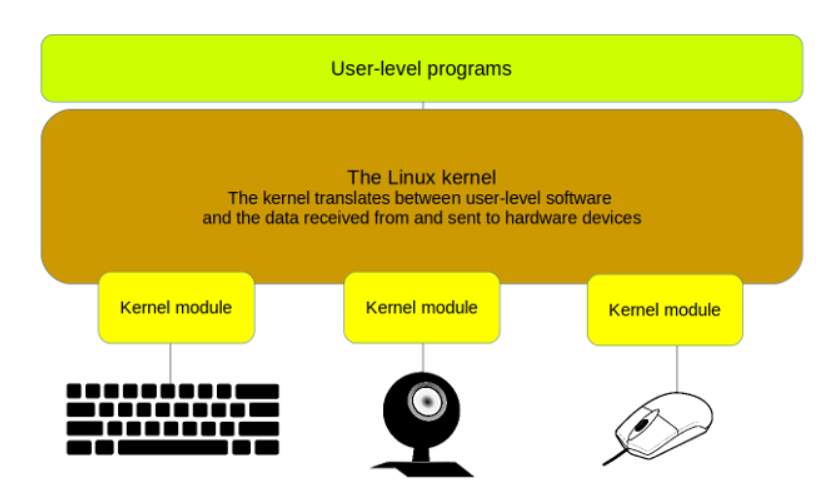
To enable WiFi on the Qidi machine a kernel module has to be loaded and will manage the WiFi dongle present in your machine. Qidi machines coming with a Tenda technlogies dongle equipped with RTL8188GU chip.
Some Linux commands are required to make it work.Please dig into it and understand what it means. I will summarize the most important things here.
[](https://openqidi.com/uploads/images/gallery/2024-05/Sgksp1LShb9Qfvv6-image.png)
1\) You should use a rather new version of Armbian. I use this fantastic release here:
[https://github.com/redrathnure/armbian-mkspi](https://github.com/redrathnure/armbian-mkspi)
[](https://openqidi.com/uploads/images/gallery/2024-05/bEhj5jjzjxTAGHbX-image.png)
2\) Depending on your release you have to make sure that you de-freeze your Kernel and install Kernel headers. This is required because you need usb-modeswitch. In case you install
However in case you use [0.3.4-24.2.0-trunk](https://github.com/redrathnure/armbian-mkspi/releases/tag/mkspi%2F0.3.4-24.2.0-trunk) with an edge 6.7 Kernel all your problems are solved and you can jump to the next step.
#### Update your system
`sudo apt-get update`
#### Install armbian firmware
`sudo apt-get install armbian-firmware-full`
#### List your usb devices, possibly you see realtek device in "CD ROM Mode"
`lsusb`
#### Fix with usb-modeswitch
`sudo apt-get install usb-modeswitch`
#### command
`sudo usb_modeswitch -KW -v 0bda -p 1a2b`
###
If successful you see something like this:
[](https://openqidi.com/uploads/images/gallery/2024-05/jLbPBmb6FmWbnVkg-image.png)
3\) Check if you have the module up and runnng. In my case it never worked.
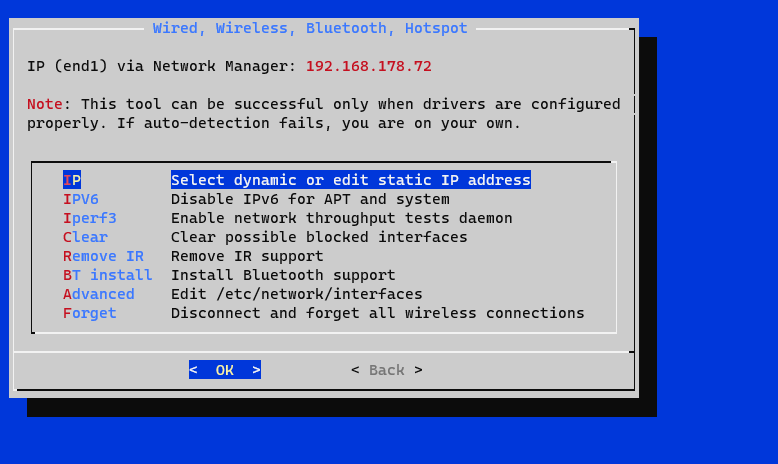
perform: `sudo armbian-config `or `nmtui`
No wireless device is showing up here...
[](https://openqidi.com/uploads/images/gallery/2024-05/EERnZ8bzXnB1TIyG-image.png)
Also check your status from time to time with these useful commands:
`lsusb`
`lsblk`
`sudo iwconfig`
[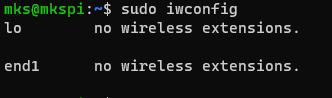](https://openqidi.com/uploads/images/gallery/2024-05/csXVUqNR6NPBeMOy-image.png)
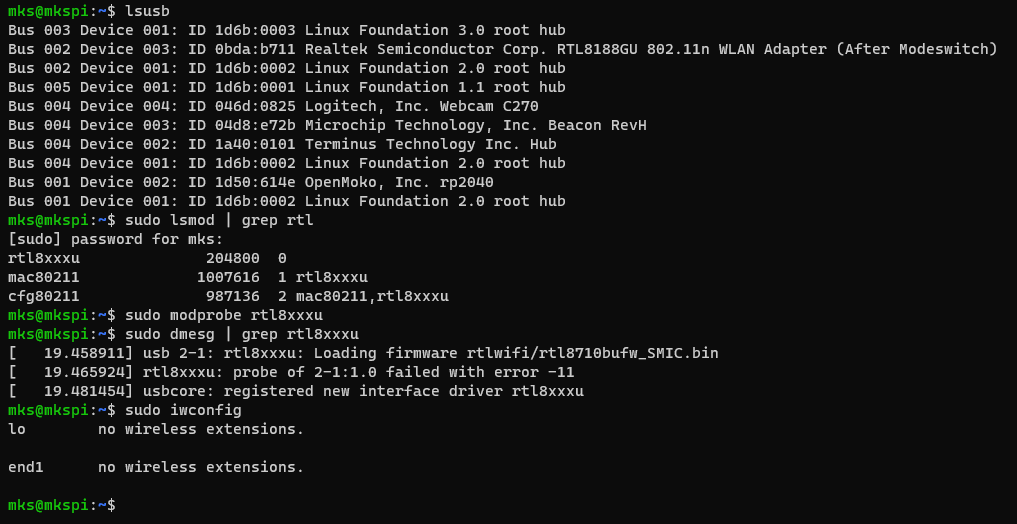
I loaded rtl8xxxu module with `sudo lsmod | grep rtl` and `sudo modprobe rtl8xxxu`
[](https://openqidi.com/uploads/images/gallery/2024-05/Ukg5mxzG95jiHX62-image.png)
Still no effect. Really dont know why. It should work by now.
4\) Install another driver! What worked for me is this one from wandercn. There are many other drivers available but this one is stable and fast. (Source: [https://github.com/wandercn/RTL8188GU](https://github.com/wandercn/RTL8188GU))
```
lsusb|grep WLAN
```
WLAN model is "RTL8188GU"
Build kernel to get linux-headers. Should be done in previous step or simply come with a suitable releas.
Install the required packages and reboot
```
sudo apt install -y bc build-essential git
sudo reboot
```
Get source code
```
git clone https://github.com/wandercn/RTL8188GU.git
cd RTL8188GU/8188gu-1.0.1
sudo make
sudo make install
```
Install the required packages and reboot
```
sudo apt install -y dkms bc build-essential git dh-make
sudo reboot
```
check status
```
sudo dkms status
```
5\) unplug/re-plug WiFi dongle !!! Most important step. Don know why but do it!
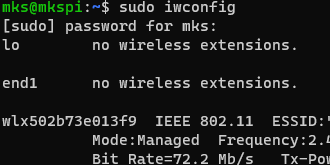
6\) `sudo iwconfig ` shows now something like this. SUCCESS!
[](https://openqidi.com/uploads/images/gallery/2024-05/Oqs4w2JcfJ58yKsJ-image.png)
7\) For the case if it will loose the module after reboot I also added RTL8188GUXX in /etc/modules
Remarks: I still dont know why the armbian release doesen't native support this stick. In my view all requirements are met. However with this little adjustment and the driver from wandercn you have a working solution for your Xmax 3 or X Plus 3 machines.