This guide works with both V2 and V3 probes
#### Hardware and mounting For installation can use [this mount](https://www.printables.com/model/692991-qidi-x3-series-beacon-cartographer-probe-low-profi) (for X-Max 3), For X-Plus 3, [there's remix](https://www.printables.com/model/962456-qidi-x-plus-3-beaconcartographer-probe-mount), original [Beacon mount](https://www.printables.com/model/639766-qidi-x-smartplusmax-beacon-probe-low-profile-mount) also works, but it's slightly flimsier. Make sure to print mount out of something that can sit near bed and wouldn't deform. PAHT-CF is good candidate, ABS and ASA work too, their GF and CF parts even better. PLA and PETG won't survive the bed heat from bed when using higher temperatures **Needed hardware:** **4x M3x14 bolts** original stock probe mount bolts. Stock probe has 2 bolts, there should be 2 extra that came with printer / official upgrade package as spare parts **2x M3 nuts** to secure probe in place. Those didn't come with printer, had to buy **2x M2.5x16** had those with one of Qidi printers as spare parts too, can't remember if it was iFast or X-Max 3 **Optional zipties** to secure cable Do not put cable into cable chain, USB cable is not rated for it, it's good to have it rather loose, so there's no single point that keeps on bending (Some users have reported in Discord, that cable broke after around 1k print hours in cable chain) Good installation would be like this, just 3 rather loose zip-ties to secure the cable [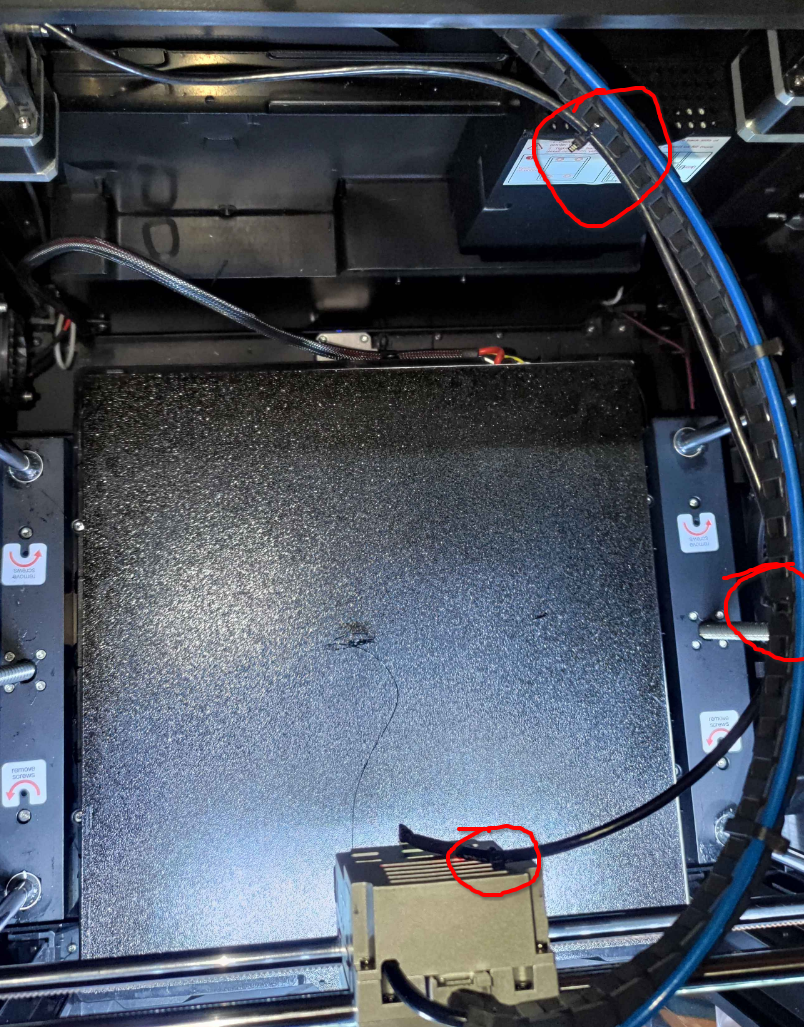](https://openqidi.com/uploads/images/gallery/2024-08/fU4nm6vSqYr3Khqc-image.png) After mounting it, move toolhand manually thro all 4 corners and check that cable doesn't get stuck behind anything #### Software installation For Cartographer software installation you can [refer to it's own doc](https://docs.cartographer3d.com/cartographer-probe/installation-and-setup/klipper-setup), but since there are some changes needed, wrote it down in here also. Follow Carto doc when you know what you are doing. Installing on stock Qidi firmware refer to this doc First of all, need to SSH into printer. You can find printer IP from printer screen under network tab or from router. SSH user is `mks` to printer with `mks@IP\_ADDR` for example `mks@192.168.88.36` Password is `makerbase` By default Qidi printers have wrong system time, first need to update that by running `apt install ntp` and `dpkg-reconfigure tzdata`. Qidi Official wiki has good guide on it: [https://wiki.qidi3d.com/en/Memo/System-Time-Modification](https://wiki.qidi3d.com/en/Memo/System-Time-Modification "https://wiki.qidi3d.com/en/Memo/System-Time-Modification") After updating datetime, going to install Cartographer software. Writing this guide in two parts, **Bed meshing** and **Auto Z offset**, since bed meshing is rather simple, auto z offset requires some more work with older Qidi firmwares ##### Bed meshingEasy way will require minimal changes, but will be limited to having only bed mesh. For auto Z offset need to follow advanced part
1. `cd` -- Make sure you are at home directory 2. `git clone https://github.com/Cartographer3D/cartographer-klipper.git` -- Get Carto software 3. `cd cartographer-klipper` -- Go to Cartographer folder 4. `git checkout v1.0.0` -- This will make you run older version of Carto software, that works with Qidi printers out of box 5. `chmod +x ./install.sh` -- Make Carto installation script executable 6. `./install.sh` -- Execute install script 7. Running installation might give warning about Python version. It's safe to ignore it, since we pinned Cartographer software version to v1.0.0 After cartographer is installed, need to make some modifications to printer config. It's easiest to make it thro printer web UI (Fluidd). It's accessible at printer IP and port 10088, like [http://192.168.88.36:10088/#/configure](http://192.168.88.36:10088/#/configure) (replace IP with your printer IP). For more advanced users, I'd recommend to connect VSCode to printer and edit `~/klipper_config/printer.cfg` directly Inside `[stepper_z]` need to change `homing_retract_dist` ```diff - homing_retract_dist: 8.0 + homing_retract_dist: 0 # cartographer needs this to be set to 0, was 8.0 ``` Inside `[homing_override]` need to get rid of references to `printer.probe`. `printer.probe["x_offset"]` is going to be removed and `printer.probe["y_offset"]` is going to be replaced with `25` (needs to be hardcoded, Qidi older Klipper doesn't work too well with variables, or McSneaky has no idea how to use them) ```diff - G1 X{printer.toolhead.axis_maximum.x/2 - printer.probe["x_offset"]} Y{printer.toolhead.axis_maximum.y/2 - printer.probe["y_offset"]} F7800 + G1 X{printer.toolhead.axis_maximum.x/2} Y{printer.toolhead.axis_maximum.y/2 - 25} F7800 ``` Inside `[bed_mesh]` section need to adjust `mesh_min`. It's also advised to change `probe_count` and `speed`. Those two can be whatever you feel comfortable with. Sweet spot seems to be **speed** somewhere between **150** to **600** and **probe\_count** somewhere around **15** (odd numbers in probe\_count are good, this way bed center point is also probed) ```diff [bed_mesh] -speed:150 +speed:300 #调平速度 CARTO CHANGED, used to be 150 horizontal_move_z:10 #调平中Z抬高高度 -mesh_min:25,10 #探测点最小位置 +mesh_min:25,20 #探测点最小位置 # CARTO CHANGED, used to be 25,10 mesh_max:315,315 #探测点最大位置 -probe_count:9,9 #调平点数 +probe_count:15,15 #调平点数 # CARTO CHANGED, used to be 9,9 algorithm:bicubic bicubic_tension:0.2 mesh_pps: 4, 4 ``` Replace `probe` or `bltouch` section with `cartographer`. Inside `cartographer` default settings need to change `y_offset` to **25** and `serial` to your USB serial To get USB serial run `ls /dev/serial/by-id/` this will give you toolhead ID (`usb-Klipper-rp2040-something`) and Cartographer ID (`usb-Cartographer-something`). Copy / write down Cartographer ID[](https://openqidi.com/uploads/images/gallery/2024-08/GxNNdBIzrB21L7re-image.png) In the end your `cartographer` config should look something like this:Be sure to update "**serial**" and "**y\_offset**"
```yml [cartographer] # PASTE IN YOUR ID TO HERE! serial: /dev/serial/by-id/usb-Cartographer_614e_1C0028001343565537353020-if00 # Path to the serial port for the Cartographer device. Typically has the form # # If you are using the CAN Bus version, replace serial: with canbus_uuid: and add the UUID. # Example: canbus_uuid: 1283as878a9sd # speed: 40. # Z probing dive speed. lift_speed: 5. # Z probing lift speed. backlash_comp: 0.5 # Backlash compensation distance for removing Z backlash before measuring # the sensor response. x_offset: 0. # X offset of cartographer from the nozzle. y_offset: 25 ## BE SURE TO SET TO 25 # Y offset of cartographer from the nozzle. trigger_distance: 2. # cartographer trigger distance for homing. trigger_dive_threshold: 1.5 # Threshold for range vs dive mode probing. Beyond `trigger_distance + # trigger_dive_threshold` a dive will be used. trigger_hysteresis: 0.006 # Hysteresis on trigger threshold for untriggering, as a percentage of the # trigger threshold. cal_nozzle_z: 0.1 # Expected nozzle offset after completing manual Z offset calibration. cal_floor: 0.1 # Minimum z bound on sensor response measurement. cal_ceil:5. # Maximum z bound on sensor response measurement. cal_speed: 1.0 # Speed while measuring response curve. cal_move_speed: 10. # Speed while moving to position for response curve measurement. default_model_name: default # Name of default cartographer model to load. mesh_main_direction: x # Primary travel direction during mesh measurement. #mesh_overscan: -1 # Distance to use for direction changes at mesh line ends. Omit this setting # and a default will be calculated from line spacing and available travel. mesh_cluster_size: 1 # Radius of mesh grid point clusters. mesh_runs: 2 # Number of passes to make during mesh scan. # [safe_z_home] # home_xy_position: 162.5, 162.5 # CARTO CHANGED # # Example home_xy_position: 175,175 - This would be for a 350 * 350mm bed. # z_hop: 3 [gcode_macro PROBE_CALIBRATE] gcode: CARTOGRAPHER_CALIBRATE ```Notice, that in the end there's also macro for **PROBE\_CALIBRATE**, don't forget to paste that in
Finally there's also some references to `printer.probe` in `[gcode_macro M4029]` need to replace them too ```diff - G1 X{printer.toolhead.axis_maximum.x/2 - printer.probe["x_offset"]} Y{printer.toolhead.axis_maximum.y/2 - printer.probe["y_offset"]} F7800 + G1 X{printer.toolhead.axis_maximum.x/2} Y{printer.toolhead.axis_maximum.y/2 - 25} F7800 ``` Now Cartographer is installed and configured. Next step is to do initial calibrationDon't forget to hit "**Save and restart"** in web UI!
#### Initial calibration There's no Qidi specifics in here. There are just two protips: - If bed doesn't want to move up anymore and you get error: "out of bounds". Turn off printer and manually turn bed leadscrews to get bed close to nozzle. About ~5-10mm - Hold your hand on power off switch during calibration and when doing initial test print. In case you did something wrong bed might collide to nozzle. It's good to turn off printer real fast then to not cause damage to PEI sheet Other than that two, follow Cartographer docs: [https://docs.cartographer3d.com/cartographer-probe/installation-and-setup/cartographer-with-input-shaper-v2-and-v3-hybrid](https://docs.cartographer3d.com/cartographer-probe/installation-and-setup/cartographer-with-input-shaper-v2-and-v3-hybrid) ## Everything below is still WIP #### Auto Z offset AKA Carto Survey Cartographer Survey installation consists of two steps: **Updating Carto Klipper plugin on printer** and **Updating Carto own firmware** ##### Updating Carto Klipper plugin First, backup your printer.cfg, then remove all Carto, BLTouch, Scanner and Probe sections in there. Also at the end of printer.cfg remove `[cartographer model default]` section SSH to printer and go to `~/cartographer-klipper` folder. If you don't have that, follow guide for Carto installation above To get latest Cartographer code to your printer: 1. `git stash` to save all your changes 2. `git checkout main` to make your code follow main Cartographer codebase 3. `git reset --hard @{u}` to make sure you have exactly the same code locally in printer, as in Cartographer Github Then run the install script with `./install.sh`. If it gives permission error or sais it's not executable, run `chmod +x ./instal.sh` to make Carto install script executable This will most likely result in some warnings like on image below. They are safe to ignore[](https://openqidi.com/uploads/images/gallery/2024-09/B2AwWKEmC4uFR9ms-carto-tocuh-install.png) Next up, we need to ##### Update Cartographer firmware QIDI Printers use USB version of Cartographer Firmware update requries `pyserial` Python package. To get it, we first need to install **PIP** (Package Installer for Python) 1. `sudo apt install python3-pip` to install PIP for Python 3 2. `pip3 install pyserial` to install pyserial package for Python 3 Download latest version of firmware updater script: [https://firmware.cartographer3d.com/firmware.sh](https://firmware.cartographer3d.com/firmware.sh) It can be put to some random place. Before running it, it requires some modifications. In all the places where there's `~/klippy-env/bin/python` replace it with `python3` ```diff - ~/klippy-env/bin/python + python3 ``` Most likely there's about 10 places where it needs to be replaced Next up, need to make it executable with `chmod +x ./firmware.sh` Run the script `./firmware.sh` You should see something like this. Type in **yes** [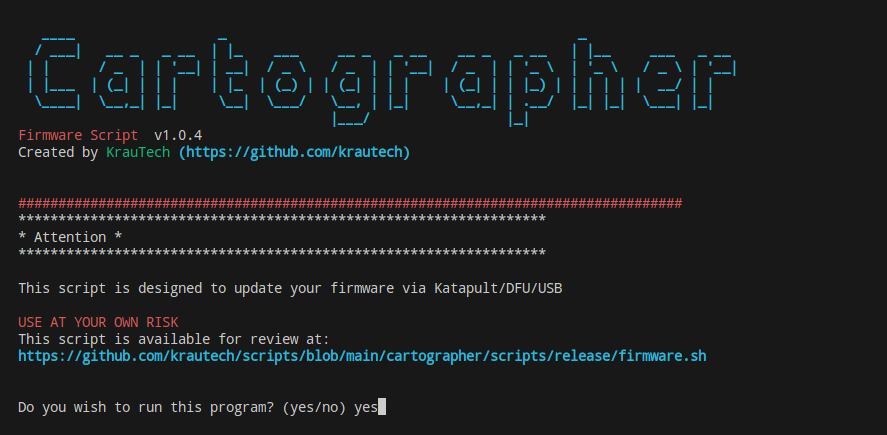](https://openqidi.com/uploads/images/gallery/2024-10/H19pPbr3I1SrZP9s-image.png) Next up, pick **9** [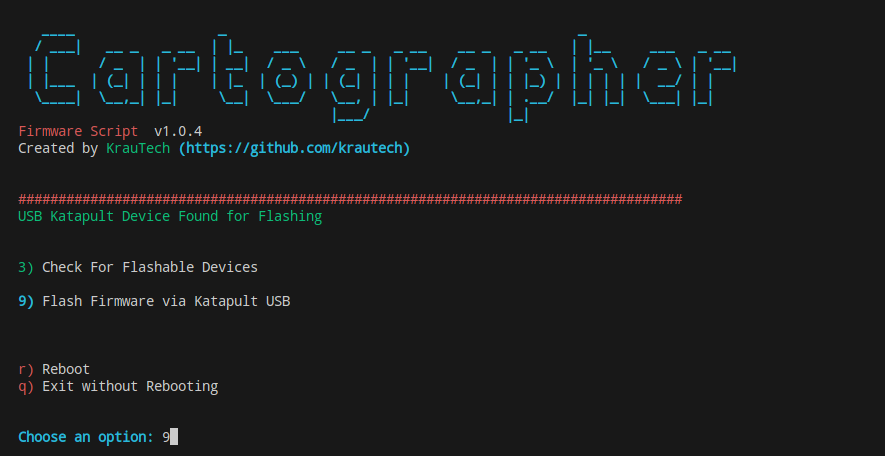](https://openqidi.com/uploads/images/gallery/2024-10/H7Jl9OSaxEo3Bjzu-image.png) Then pick **1** for Survey Touch [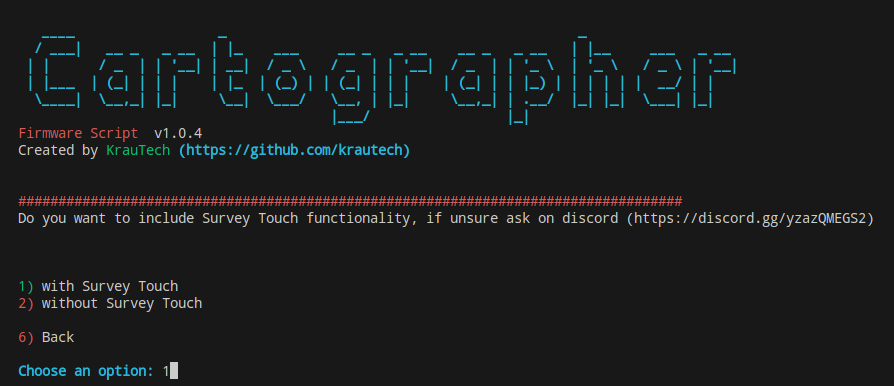](https://openqidi.com/uploads/images/gallery/2024-10/zCJqE7R0MBFUbg92-image.png) Then pick **2** for USB Cartographer [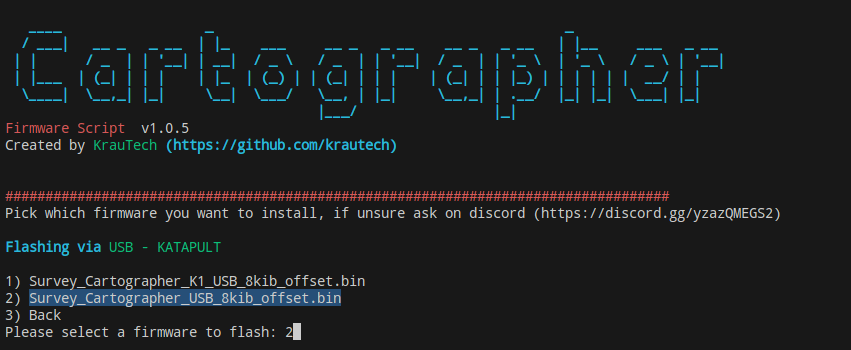](https://openqidi.com/uploads/images/gallery/2024-10/WmwPEGnkp40VFNcO-image.png) Give it some seconds. You should see nice loading bar and then "Success" [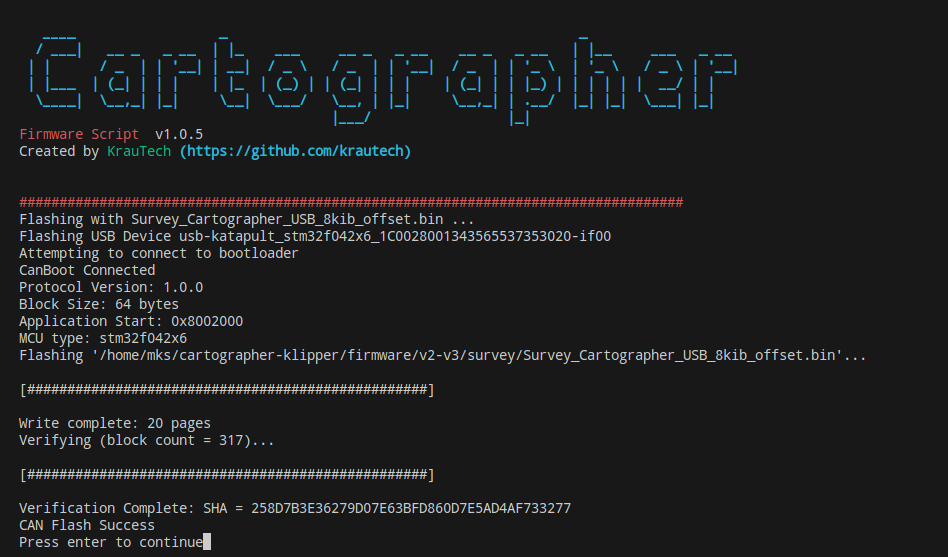](https://openqidi.com/uploads/images/gallery/2024-10/3v9rlAV22EeKgKdM-image.png) After installing, it will ask for sudo password (makerbase) to restart Klipper It will take you back to beginning. Now need to hard restart printer. Turn off power from back of the printer. Wait for ~10 sec and then turn it back again. You can confirm everything is OK, if you run `ls /dev/serial/by-id` and see **usb-Cartographer** in there. If you see **usb-STM**, then something is off. Try to restart printer again or re-flash Now we get back to installing Cartographer Klipper plugin. It's quite a pain tbh.. ##### Install Fortan compiler First, we need Fortan compiler, coz gotta love Python packages.. `sudo apt-get install gfortran` to install Fortan ##### Increase swap Then, since compiling all those packages takes quite some RAM, we need to increase that. Sadly there's no way to increase RAM itself. Falling back to increasing swap But since swap partition size can't be increased, we'll create new swap file and use that on primary partition You can check your current swap file with `sudo swapon --show` most likely it is `/dev/zram0` 1. `sudo swapoff /dev/zram0` to turn off current swap file 2. `sudo dd if=/dev/zero of=/swapfile bs=1MB count=8192` to create new 8gb swap file 3. `sudo chmod 600 /swapfile` to add correct permissions to swap file 4. Edit **/etc/fstab** with favourite editor and add `/swapfile swap swap defaults 0 0` to the end of it 5. `sudo mkswap /swapfile` to mark that file as swap file 6. `sudo swapon /swapfile` to turn swap back on 7. `swapon --show` to check, if **/swapfile** is in use and everythign is OK ##### Increase /tmp size Actually, there's no nice way to increase /tmp size, since it's on standalone partition, like swap. Since huge /tmp size is only needed by **pip** in install script, we can modify **install.sh** On line about 30, there should be something like this: `"${KENV}/bin/pip" install -r "${BKDIR}/requirements.txt"` Need to prefix it with `TMPDIR=/home/mks/cartographer-klipper/compiler-temp` ```diff - "${KENV}/bin/pip" install -r "${BKDIR}/requirements.txt" + TMPDIR=/home/mks/cartographer-klipper/compiler-temp "${KENV}/bin/pip" install -r "${BKDIR}/requirements.txt" ``` ##### Change requirements :) In Carto folder there's **requirements.txt** file. By default Cart requires stuff for Python 3, but since we are on Python 2, need to downgrade requirements Lower **scipy** and **matplotlib** versions ```diff - scipy>=1.10.0 - matplotlib>=3.7.0 + scipy>=1.2.3 + matplotlib>=2.2.5 ``` ##### Actually installing Klipper plugin Since while Python is compiling things, printer will be totally unresponsive (even to SSH) for several hours. Can expect it to take 1-4h or so To make sure compile keeps on going, it's good idea to start it in screen session and then detach from it. This way compiling isn't tied to SSH session 1. `screen -RL carto` to start new screen session named **carto** with -L to enable logging to file (in case of crashes) 1. This will tell smth about: "new screen started" or something. Press "Enter" 2. `./install.sh` inside screen session 3. Detach from screen by pressing **Ctrl+a followed by d**. Note the lower case 1. If you want to see what's going on, use `htop` or `tail -f ~/screenlog.0` 4. Wait some hours Replace scanner.py with [https://gist.github.com/McSneaky/0e80e1562aa22e112936aed9db1cc062](https://gist.github.com/McSneaky/0e80e1562aa22e112936aed9db1cc062) and follow Carto guide from Configuration step [https://docs.cartographer3d.com/cartographer-probe/survey-touch#configuration](https://docs.cartographer3d.com/cartographer-probe/survey-touch#configuration)