# Upgrades & updates

# Cartographer installation with Qidi stock firmware

[Cartographer ](https://cartographer3d.com/)is Eddy current bed probe, which makes bed meshing a lot faster and a lot more percise. There are several such probes out there. Most known is [Beacon](https://beacon3d.com/), which is made by US fellas, Cartographer, which is made by UK fellas and quite some of them in [AliExpress](https://www.aliexpress.com/item/1005006256904257.html)

They are known for their speed and accuracy. If regular probe accuracy is around 0.001mm, then Eddy current probes are 0.0001mm, which is 10x more accurate. Their probing speed is limited by printer head moving speed and printer motherboard CPU. In theory they can do some milion measurements per second  
  
Here's a 10 sec 15x15 grid full bed mesh, which takes with regular Probe around 45 minutes  
<iframe allowfullscreen="allowfullscreen" height="314" src="https://www.youtube.com/embed/imeiiPBO91Y" width="560"></iframe>

### Installation

<p class="callout success">This guide works with both V2 and V3 probes</p>

#### Hardware and mounting

For installation can use [this mount](https://www.printables.com/model/692991-qidi-x3-series-beacon-cartographer-probe-low-profi) (for X-Max 3), For X-Plus 3, [there's remix](https://www.printables.com/model/962456-qidi-x-plus-3-beaconcartographer-probe-mount), original [Beacon mount](https://www.printables.com/model/639766-qidi-x-smartplusmax-beacon-probe-low-profile-mount) also works, but it's slightly flimsier. Make sure to print mount out of something that can sit near bed and wouldn't deform. PAHT-CF is good candidate, ABS and ASA work too, their GF and CF parts even better. PLA and PETG won't survive the bed heat from bed when using higher temperatures  
  
**Needed hardware:**  
**4x M3x14 bolts** original stock probe mount bolts. Stock probe has 2 bolts, there should be 2 extra that came with printer / official upgrade package as spare parts  
**2x M3 nuts** to secure probe in place. Those didn't come with printer, had to buy  
**2x M2.5x16** had those with one of Qidi printers as spare parts too, can't remember if it was iFast or X-Max 3  
**Optional zipties** to secure cable

Do not put cable into cable chain, USB cable is not rated for it, it's good to have it rather loose, so there's no single point that keeps on bending (Some users have reported in Discord, that cable broke after around 1k print hours in cable chain)

Good installation would be like this, just 3 rather loose zip-ties to secure the cable

[![image.png](https://openqidi.com/uploads/images/gallery/2024-08/scaled-1680-/fU4nm6vSqYr3Khqc-image.png)](https://openqidi.com/uploads/images/gallery/2024-08/fU4nm6vSqYr3Khqc-image.png)
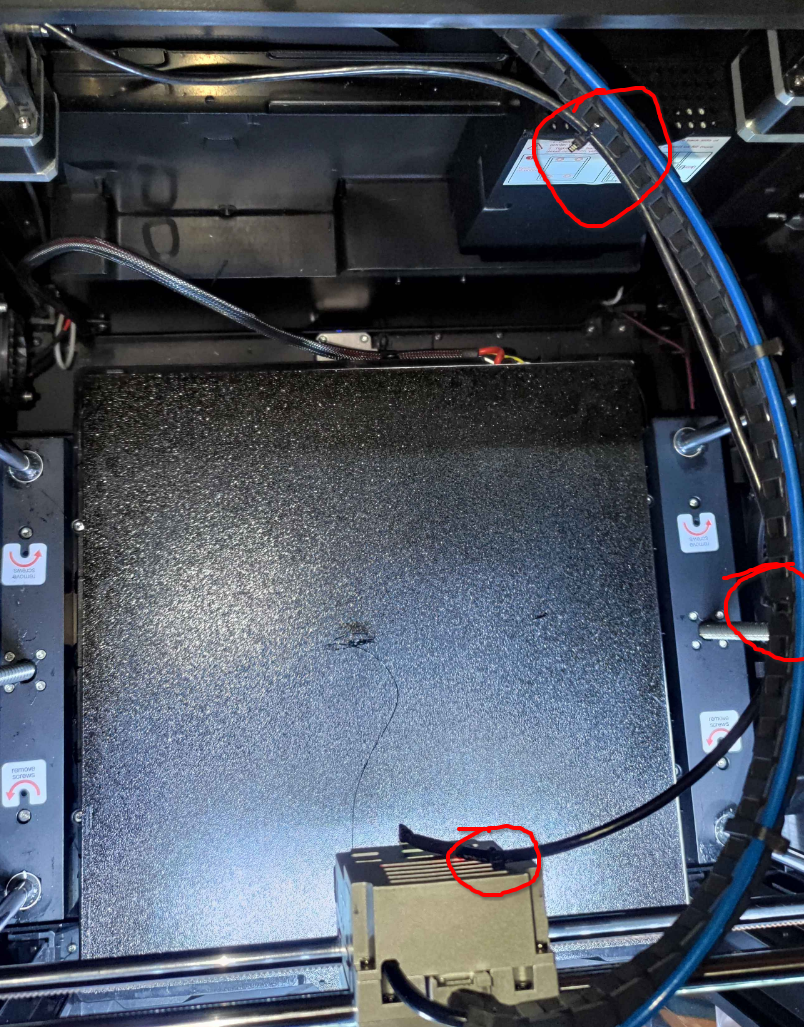
After mounting it, move toolhand manually thro all 4 corners and check that cable doesn't get stuck behind anything

#### Software installation  


For Cartographer software installation you can [refer to it's own doc](https://docs.cartographer3d.com/cartographer-probe/installation-and-setup/klipper-setup), but since there are some changes needed, wrote it down in here also. Follow Carto doc when you know what you are doing. Installing on stock Qidi firmware refer to this doc

First of all, need to SSH into printer. You can find printer IP from printer screen under network tab or from router.  
SSH user is `mks` to printer with `mks@IP\_ADDR` for example `mks@192.168.88.36`  
Password is `makerbase`

By default Qidi printers have wrong system time, first need to update that by running `apt install ntp` and `dpkg-reconfigure tzdata`. Qidi Official wiki has good guide on it: [https://wiki.qidi3d.com/en/Memo/System-Time-Modification](https://wiki.qidi3d.com/en/Memo/System-Time-Modification "https://wiki.qidi3d.com/en/Memo/System-Time-Modification")

After updating datetime, going to install Cartographer software. Writing this guide in two parts, **Bed meshing** and **Auto Z offset**, since bed meshing is rather simple, auto z offset requires some more work with older Qidi firmwares

##### Bed meshing

<p class="callout info">Easy way will require minimal changes, but will be limited to having only bed mesh. For auto Z offset need to follow advanced part</p>

1. `cd` -- Make sure you are at home directory
2. `git clone <a href="https://github.com/Cartographer3D/cartographer-klipper.git">https://github.com/Cartographer3D/cartographer-klipper.git</a>` -- Get Carto software
3. `cd cartographer-klipper` -- Go to Cartographer folder
4. `git checkout v1.0.0` -- This will make you run older version of Carto software, that works with Qidi printers out of box
5. `chmod +x ./install.sh` -- Make Carto installation script executable
6. `./install.sh` -- Execute install script
7. Running installation might give warning about Python version. It's safe to ignore it, since we pinned Cartographer software version to v1.0.0

After cartographer is installed, need to make some modifications to printer config. It's easiest to make it thro printer web UI (Fluidd). It's accessible at printer IP and port 10088, like [http://192.168.88.36:10088/#/configure](http://192.168.88.36:10088/#/configure) (replace IP with your printer IP).  
For more advanced users, I'd recommend to connect VSCode to printer and edit `~/klipper_config/printer.cfg` directly

Inside `[stepper_z]` need to change `homing_retract_dist`

```diff
- homing_retract_dist: 8.0
+ homing_retract_dist: 0 # cartographer needs this to be set to 0, was 8.0
```

Inside `[homing_override]` need to get rid of references to `printer.probe`. `printer.probe["x_offset"]` is going to be removed and `printer.probe["y_offset"]` is going to be replaced with `25` (needs to be hardcoded, Qidi older Klipper doesn't work too well with variables, or McSneaky has no idea how to use them)

```diff
-    G1 X{printer.toolhead.axis_maximum.x/2 - printer.probe["x_offset"]} Y{printer.toolhead.axis_maximum.y/2 - printer.probe["y_offset"]} F7800
+    G1 X{printer.toolhead.axis_maximum.x/2} Y{printer.toolhead.axis_maximum.y/2 - 25} F7800
```

Inside `[bed_mesh]` section need to adjust `mesh_min`. It's also advised to change `probe_count` and `speed`. Those two can be whatever you feel comfortable with. Sweet spot seems to be **speed** somewhere between **150** to **600** and **probe\_count** somewhere around **15** (odd numbers in probe\_count are good, this way bed center point is also probed)

```diff
[bed_mesh]
-speed:150
+speed:300               #调平速度 CARTO CHANGED, used to be 150
horizontal_move_z:10   #调平中Z抬高高度
-mesh_min:25,10        #探测点最小位置
+mesh_min:25,20        #探测点最小位置 # CARTO CHANGED, used to be 25,10
mesh_max:315,315      #探测点最大位置
-probe_count:9,9      #调平点数
+probe_count:15,15      #调平点数 # CARTO CHANGED, used to be 9,9
algorithm:bicubic
bicubic_tension:0.2
mesh_pps: 4, 4
```

Replace `probe` or `bltouch` section with `cartographer`. Inside `cartographer` default settings need to change `y_offset` to **25** and `serial` to your USB serial  
To get USB serial run `ls /dev/serial/by-id/` this will give you toolhead ID (`usb-Klipper-rp2040-something`) and Cartographer ID (`usb-Cartographer-something`). Copy / write down Cartographer ID[![image.png](https://openqidi.com/uploads/images/gallery/2024-08/scaled-1680-/GxNNdBIzrB21L7re-image.png)](https://openqidi.com/uploads/images/gallery/2024-08/GxNNdBIzrB21L7re-image.png)

In the end your `cartographer` config should look something like this:

<p class="callout danger">Be sure to update "**serial**" and "**y\_offset**"</p>

```yml
[cartographer]
# PASTE IN YOUR ID TO HERE!
serial: /dev/serial/by-id/usb-Cartographer_614e_1C0028001343565537353020-if00 
#   Path to the serial port for the Cartographer device. Typically has the form
#   
#   If you are using the CAN Bus version, replace serial: with canbus_uuid: and add the UUID.
#   Example: canbus_uuid: 1283as878a9sd
#
speed: 40.
#   Z probing dive speed.
lift_speed: 5.
#   Z probing lift speed.
backlash_comp: 0.5
#   Backlash compensation distance for removing Z backlash before measuring
#   the sensor response.
x_offset: 0.
#   X offset of cartographer from the nozzle.
y_offset: 25 ## BE SURE TO SET TO 25
#   Y offset of cartographer from the nozzle.
trigger_distance: 2.
#   cartographer trigger distance for homing.
trigger_dive_threshold: 1.5
#   Threshold for range vs dive mode probing. Beyond `trigger_distance +
#   trigger_dive_threshold` a dive will be used.
trigger_hysteresis: 0.006
#   Hysteresis on trigger threshold for untriggering, as a percentage of the
#   trigger threshold.
cal_nozzle_z: 0.1
#   Expected nozzle offset after completing manual Z offset calibration.
cal_floor: 0.1
#   Minimum z bound on sensor response measurement.
cal_ceil:5.
#   Maximum z bound on sensor response measurement.
cal_speed: 1.0
#   Speed while measuring response curve.
cal_move_speed: 10.
#   Speed while moving to position for response curve measurement.
default_model_name: default
#   Name of default cartographer model to load.
mesh_main_direction: x
#   Primary travel direction during mesh measurement.
#mesh_overscan: -1
#   Distance to use for direction changes at mesh line ends. Omit this setting
#   and a default will be calculated from line spacing and available travel.
mesh_cluster_size: 1
#   Radius of mesh grid point clusters.
mesh_runs: 2
#   Number of passes to make during mesh scan.

# [safe_z_home]
# home_xy_position: 162.5, 162.5 # CARTO CHANGED
# # Example home_xy_position: 175,175 - This would be for a 350 * 350mm bed. 
# z_hop: 3

[gcode_macro PROBE_CALIBRATE]
gcode:
    CARTOGRAPHER_CALIBRATE

```

<p class="callout warning">Notice, that in the end there's also macro for **PROBE\_CALIBRATE**, don't forget to paste that in</p>

Finally there's also some references to `printer.probe` in `[gcode_macro M4029]` need to replace them too

```diff
-    G1 X{printer.toolhead.axis_maximum.x/2 - printer.probe["x_offset"]} Y{printer.toolhead.axis_maximum.y/2 - printer.probe["y_offset"]} F7800
+    G1 X{printer.toolhead.axis_maximum.x/2} Y{printer.toolhead.axis_maximum.y/2 - 25} F7800
```

Now Cartographer is installed and configured. Next step is to do initial calibration

<p class="callout warning">Don't forget to hit "**Save and restart"** in web UI!</p>

#### Initial calibration

There's no Qidi specifics in here. There are just two protips:

- If bed doesn't want to move up anymore and you get error: "out of bounds". Turn off printer and manually turn bed leadscrews to get bed close to nozzle. About ~5-10mm
- Hold your hand on power off switch during calibration and when doing initial test print. In case you did something wrong bed might collide to nozzle. It's good to turn off printer real fast then to not cause damage to PEI sheet

Other than that two, follow Cartographer docs: [https://docs.cartographer3d.com/cartographer-probe/installation-and-setup/cartographer-with-input-shaper-v2-and-v3-hybrid](https://docs.cartographer3d.com/cartographer-probe/installation-and-setup/cartographer-with-input-shaper-v2-and-v3-hybrid)

## <span style="color: rgb(224, 62, 45);">Everything below is still WIP</span>

#### Auto Z offset AKA Carto Survey

Cartographer Survey installation consists of two steps: **Updating Carto Klipper plugin on printer** and **Updating Carto own firmware**

##### Updating Carto Klipper plugin

First, backup your printer.cfg, then remove all Carto, BLTouch, Scanner and Probe sections in there. Also at the end of printer.cfg remove `[cartographer model default]` section

SSH to printer and go to `~/cartographer-klipper` folder. If you don't have that, follow guide for Carto installation above

To get latest Cartographer code to your printer:

1. `git stash` to save all your changes
2. `git checkout main` to make your code follow main Cartographer codebase
3. `git reset --hard @{u}` to make sure you have exactly the same code locally in printer, as in Cartographer Github

Then run the install script with `./install.sh`. If it gives permission error or sais it's not executable, run `chmod +x ./instal.sh` to make Carto install script executable

This will most likely result in some warnings like on image below. They are safe to ignore[![carto_tocuh_install.png](https://openqidi.com/uploads/images/gallery/2024-09/scaled-1680-/B2AwWKEmC4uFR9ms-carto-tocuh-install.png)](https://openqidi.com/uploads/images/gallery/2024-09/B2AwWKEmC4uFR9ms-carto-tocuh-install.png)

Next up, we need to

##### Update Cartographer firmware

QIDI Printers use USB version of Cartographer

Firmware update requries `pyserial` Python package. To get it, we first need to install **PIP** (Package Installer for Python)

1. `sudo apt install python3-pip` to install PIP for Python 3
2. `pip3 install pyserial` to install pyserial package for Python 3

Download latest version of firmware updater script: [https://firmware.cartographer3d.com/firmware.sh](https://firmware.cartographer3d.com/firmware.sh) It can be put to some random place.   
  
Before running it, it requires some modifications. In all the places where there's `~/klippy-env/bin/python` replace it with `python3`

```diff
- ~/klippy-env/bin/python
+ python3
```

Most likely there's about 10 places where it needs to be replaced

Next up, need to make it executable with `chmod +x ./firmware.sh`

Run the script `./firmware.sh`

You should see something like this. Type in **yes**

[![image.png](https://openqidi.com/uploads/images/gallery/2024-10/scaled-1680-/H19pPbr3I1SrZP9s-image.png)](https://openqidi.com/uploads/images/gallery/2024-10/H19pPbr3I1SrZP9s-image.png)
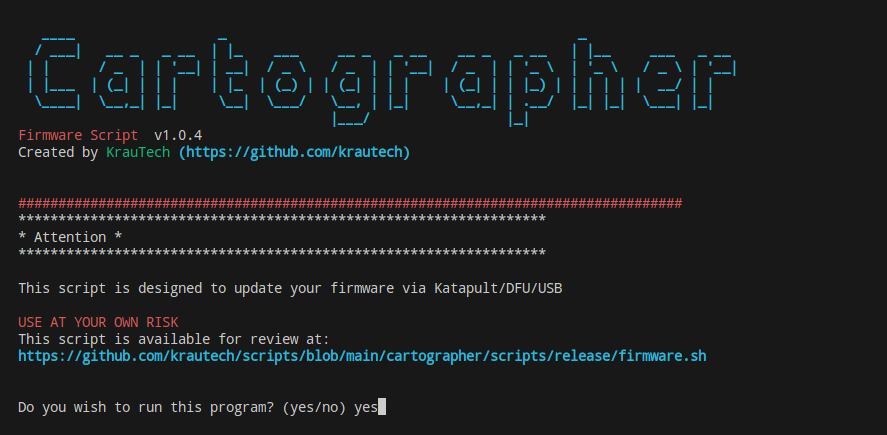
Next up, pick **9**

[![image.png](https://openqidi.com/uploads/images/gallery/2024-10/scaled-1680-/H7Jl9OSaxEo3Bjzu-image.png)](https://openqidi.com/uploads/images/gallery/2024-10/H7Jl9OSaxEo3Bjzu-image.png)
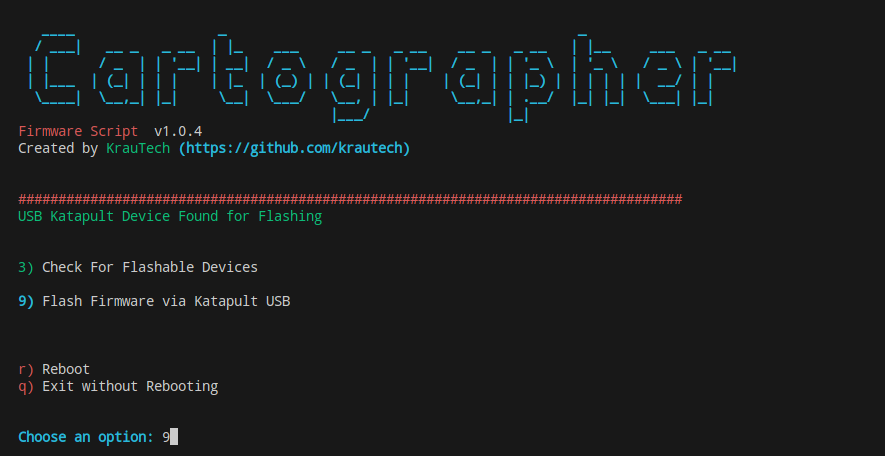
Then pick **1** for Survey Touch

[![image.png](https://openqidi.com/uploads/images/gallery/2024-10/scaled-1680-/zCJqE7R0MBFUbg92-image.png)](https://openqidi.com/uploads/images/gallery/2024-10/zCJqE7R0MBFUbg92-image.png)
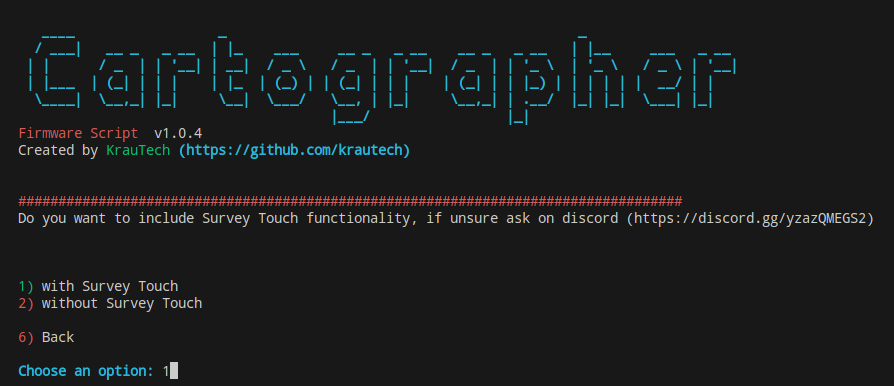
Then pick **2** for USB Cartographer

[![image.png](https://openqidi.com/uploads/images/gallery/2024-10/scaled-1680-/WmwPEGnkp40VFNcO-image.png)](https://openqidi.com/uploads/images/gallery/2024-10/WmwPEGnkp40VFNcO-image.png)
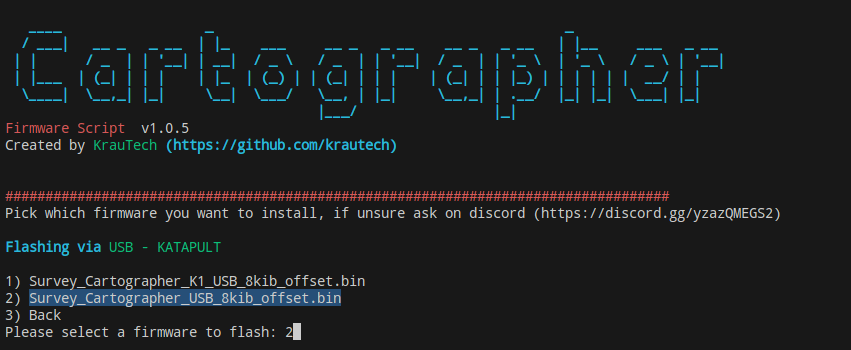
Give it some seconds. You should see nice loading bar and then "Success"

[![image.png](https://openqidi.com/uploads/images/gallery/2024-10/scaled-1680-/3v9rlAV22EeKgKdM-image.png)](https://openqidi.com/uploads/images/gallery/2024-10/3v9rlAV22EeKgKdM-image.png)
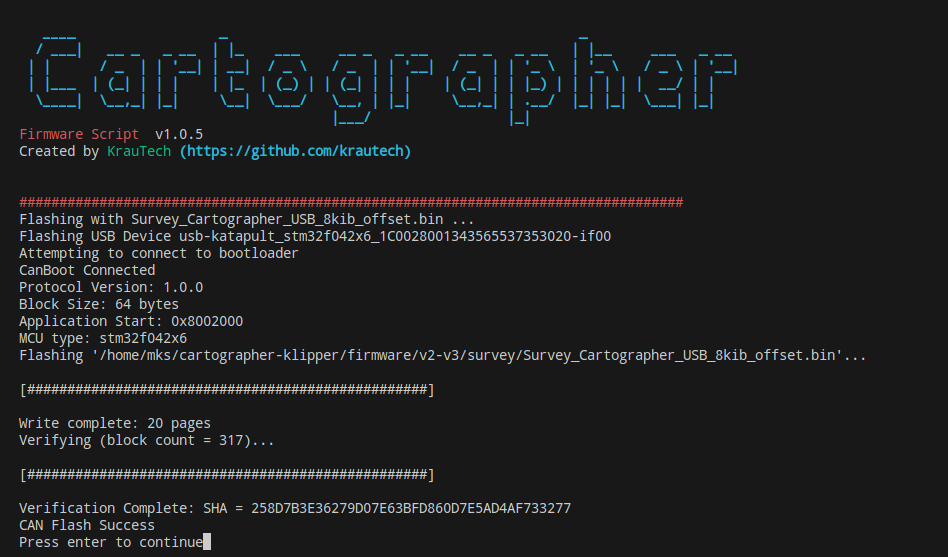
After installing, it will ask for sudo password (makerbase) to restart Klipper

It will take you back to beginning. Now need to hard restart printer. Turn off power from back of the printer. Wait for ~10 sec and then turn it back again. You can confirm everything is OK, if you run `ls /dev/serial/by-id` and see **usb-Cartographer** in there. If you see **usb-STM**, then something is off. Try to restart printer again or re-flash

Now we get back to installing Cartographer Klipper plugin. It's quite a pain tbh..

##### Install Fortan compiler

First, we need Fortan compiler, coz gotta love Python packages.. `sudo apt-get install gfortran` to install Fortan

##### Increase swap

Then, since compiling all those packages takes quite some RAM, we need to increase that. Sadly there's no way to increase RAM itself. Falling back to increasing swap

But since swap partition size can't be increased, we'll create new swap file and use that on primary partition

You can check your current swap file with `sudo swapon --show` most likely it is `/dev/zram0`

1. `sudo swapoff /dev/zram0` to turn off current swap file
2. `sudo dd if=/dev/zero of=/swapfile bs=1MB count=8192` to create new 8gb swap file
3. `sudo chmod 600 /swapfile` to add correct permissions to swap file
4. Edit **/etc/fstab** with favourite editor and add `/swapfile swap swap defaults 0 0` to the end of it
5. `sudo mkswap /swapfile` to mark that file as swap file
6. `sudo swapon /swapfile` to turn swap back on
7. `swapon --show` to check, if **/swapfile** is in use and everythign is OK

##### Increase /tmp size

Actually, there's no nice way to increase /tmp size, since it's on standalone partition, like swap. Since huge /tmp size is only needed by **pip** in install script, we can modify **install.sh**

On line about 30, there should be something like this: `"${KENV}/bin/pip" install -r "${BKDIR}/requirements.txt"`

Need to prefix it with `TMPDIR=/home/mks/cartographer-klipper/compiler-temp`

```diff
- "${KENV}/bin/pip" install -r "${BKDIR}/requirements.txt"
+ TMPDIR=/home/mks/cartographer-klipper/compiler-temp "${KENV}/bin/pip" install -r "${BKDIR}/requirements.txt"
```

##### Change requirements :) 

In Carto folder there's **requirements.txt** file. By default Cart requires stuff for Python 3, but since we are on Python 2, need to downgrade requirements

Lower **scipy** and **matplotlib** versions

```diff
- scipy>=1.10.0
- matplotlib>=3.7.0
+ scipy>=1.2.3
+ matplotlib>=2.2.5
```

##### Actually installing Klipper plugin

Since while Python is compiling things, printer will be totally unresponsive (even to SSH) for several hours. Can expect it to take 1-4h or so

To make sure compile keeps on going, it's good idea to start it in screen session and then detach from it. This way compiling isn't tied to SSH session

1. `screen -RL carto` to start new screen session named **carto** with -L to enable logging to file (in case of crashes) 
    1. This will tell smth about: "new screen started" or something. Press "Enter"
2. `./install.sh` inside screen session
3. Detach from screen by pressing **<kbd>Ctrl</kbd>+<kbd>a</kbd> followed by <kbd>d</kbd>**. Note the lower case 
    1. If you want to see what's going on, use `htop` or `tail -f ~/screenlog.0`
4. Wait some hours

Replace scanner.py with [https://gist.github.com/McSneaky/0e80e1562aa22e112936aed9db1cc062](https://gist.github.com/McSneaky/0e80e1562aa22e112936aed9db1cc062) and follow Carto guide from Configuration step [https://docs.cartographer3d.com/cartographer-probe/survey-touch#configuration](https://docs.cartographer3d.com/cartographer-probe/survey-touch#configuration)

# Updating and Flashing the the Toolhead MCU

*By Einlander*   
  
The Qidi 3 series toolhead is based on the Makerbase THR36 and THR42 toolheads ([https://github.com/makerbase-mks/MKS-THR36-THR42-UTC](https://github.com/makerbase-mks/MKS-THR36-THR42-UTC)). Flashing the qidi toolhead is a similar experience. They both use a Raspberry Pi 2040 MCU and can/are controlled by USB. The major difference is the Qidi toolhead runs 24v over the USB lines. The Qidi printers run a version of Armbian Linux running Debian Buster.

# The Process.

Here, we will break down the main steps to update and flash toolhead:

1. Compile the Klipper firmware.
2. Set the toolhead to DFU mode
3. Upload the firmware

# Assumptions and Prerequisites

Wherever possible, we will proceed using the easiest method. Tough updating and flashing the toolhead can be done completely in Linux, we will assume that a Windows PC will be used. Software that will be used is any SSH client (I think Windows 10 has one built-in). I will assume that you know how to acquire, setup and use ssh.

> <span style="color: rgb(224, 62, 45);">MAKE SURE TO REMOVE ALL USB DRIVES AND MEMORY CARDS!</span>
> 
> <span style="color: rgb(224, 62, 45);">They may conflict or make this guide difficult to follow or complete.</span>

# Compiling Klipper firmware:

## Connect to printer

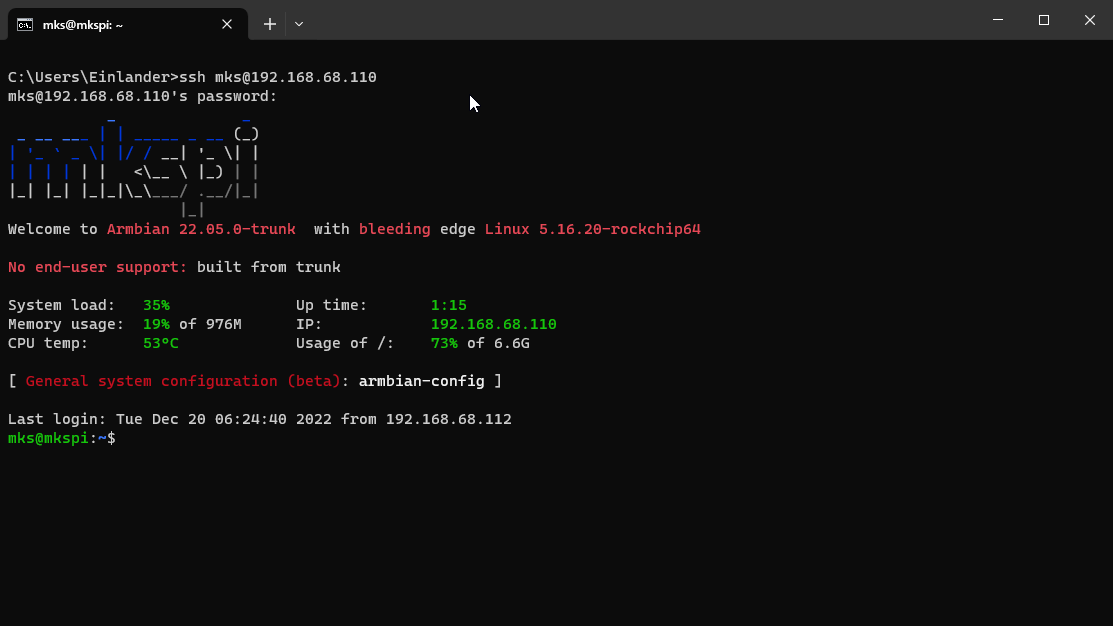
First we need to log into the printer using ssh as the user mks. You connect by directly connecting to your printer by using it's IP address.

The address format is :

```
mks@your.ip.address.here
```

The default password is

```
makerbase
```

[![image.png](https://openqidi.com/uploads/images/gallery/2024-01/scaled-1680-/1iTCJV5Vae5I9rPX-image.png)](https://openqidi.com/uploads/images/gallery/2024-01/1iTCJV5Vae5I9rPX-image.png)
## Set the time

Before we do anything else, we need to set the time.

> <span style="color: rgb(241, 196, 15);">Failing to do this step may cause the update process to fail or become more difficult.</span>

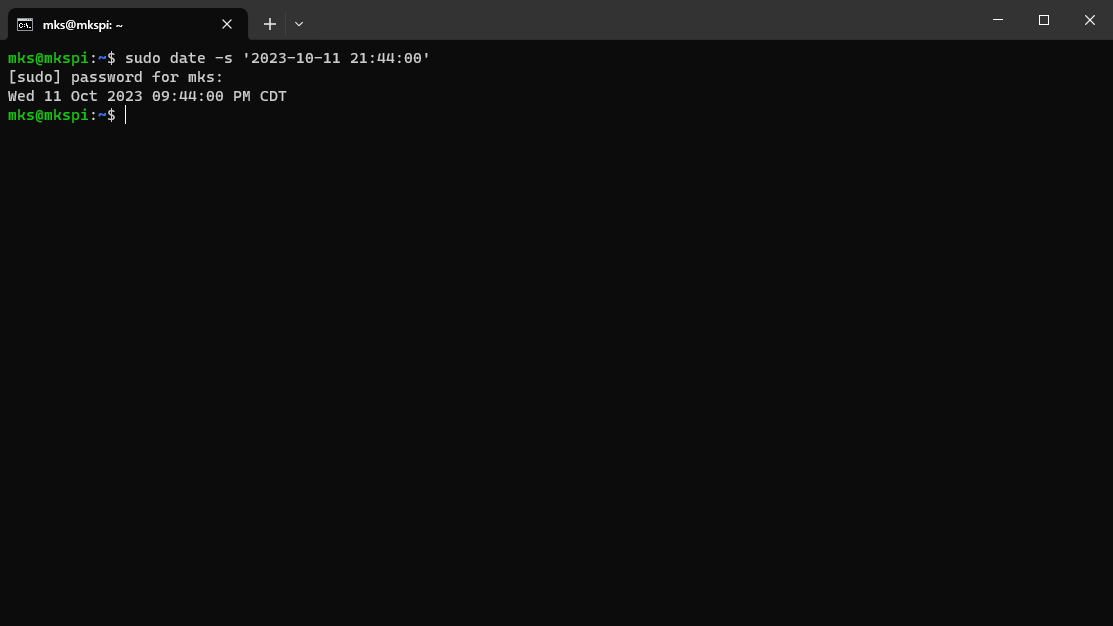
The command to set the date is

```bash
sudo date -s 'YYYY-MM-DD HH:MM:SS'
```

the password is: makerbase

[![image.png](https://openqidi.com/uploads/images/gallery/2024-01/scaled-1680-/sXWdTRoQMgGpPeV1-image.png)](https://openqidi.com/uploads/images/gallery/2024-01/sXWdTRoQMgGpPeV1-image.png)
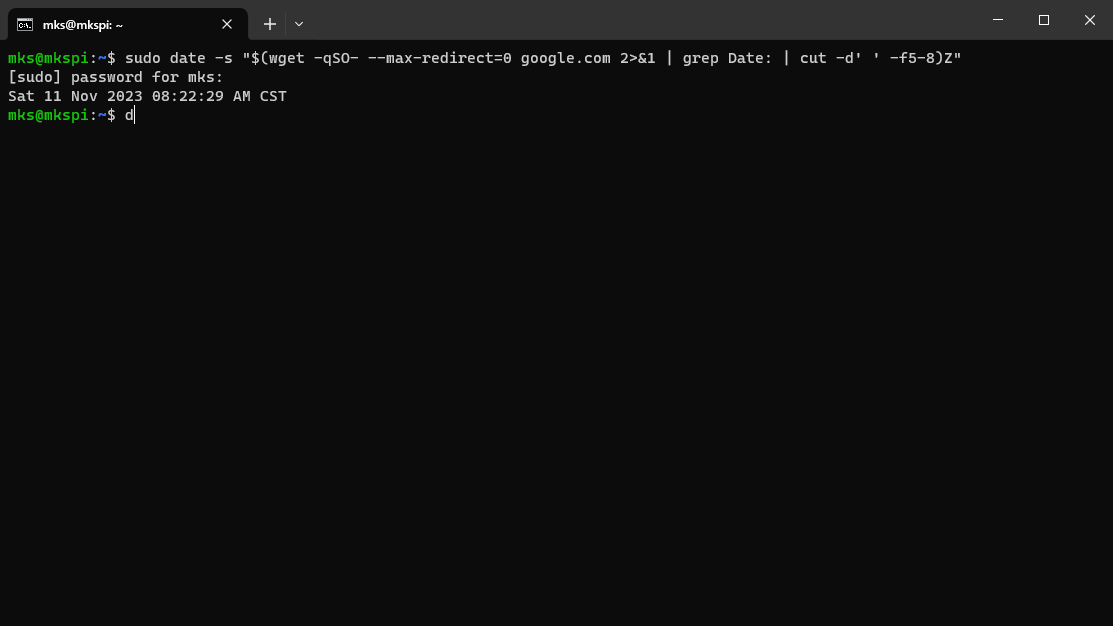
You can also try this command to try to set it automatically.

```bash
sudo date -s "$(wget -qSO- --max-redirect=0 google.com 2>&1 | grep Date: | cut -d' ' -f5-8)Z"
```

[![image.png](https://openqidi.com/uploads/images/gallery/2024-01/scaled-1680-/ybeu3YAi3Eg0nelO-image.png)](https://openqidi.com/uploads/images/gallery/2024-01/ybeu3YAi3Eg0nelO-image.png)
## Kiauh

Now, we are at one of the main parts of updating and flashing the toolhead. For this, we will use [KIAUH](https://github.com/dw-0/kiauh) the Klipper Installer and Update Helper. In our case, it is already installed on the printer. To run it, we must first type this command:

```
 ~/kiauh/kiauh.sh
```

> This command will only work when logged in as mks. It will warn you if you use it as root.

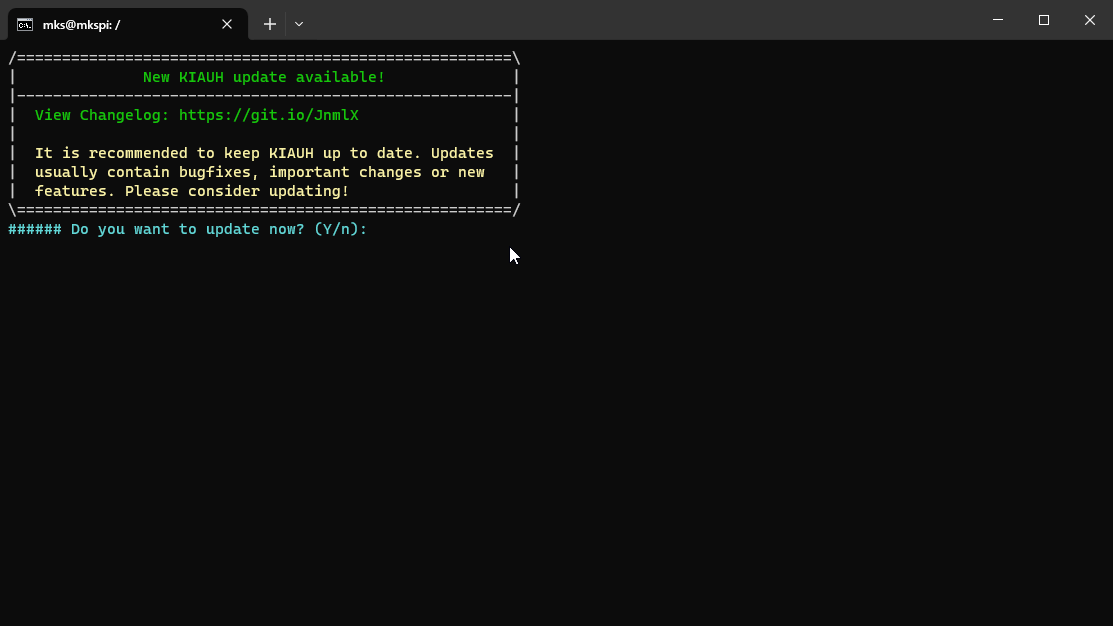
KIAUH will ask you if you want to update, type:

```
Y
```

[![image.png](https://openqidi.com/uploads/images/gallery/2024-01/scaled-1680-/HoubqyhcLIZHVAc9-image.png)](https://openqidi.com/uploads/images/gallery/2024-01/HoubqyhcLIZHVAc9-image.png)
After it updates, we need to delete some folders.

> This assumes you have never gone through this tutorial before. Qidi has customized some of the files, and KIAUH will fail when it finds them. You shouldn't need to do this in future updates. For our purposes, we will delete the directories.

```
sudo rm -r ~/klipper/
sudo rm -r ~/moonraker/
```

Start KIAUH again by typing:

```
~/kiauh/kiauh.sh
```

You should have arrived at the Main Menu screen:

[![image.png](https://openqidi.com/uploads/images/gallery/2024-01/scaled-1680-/L7o255Yh409Ky56p-image.png)](https://openqidi.com/uploads/images/gallery/2024-01/L7o255Yh409Ky56p-image.png)
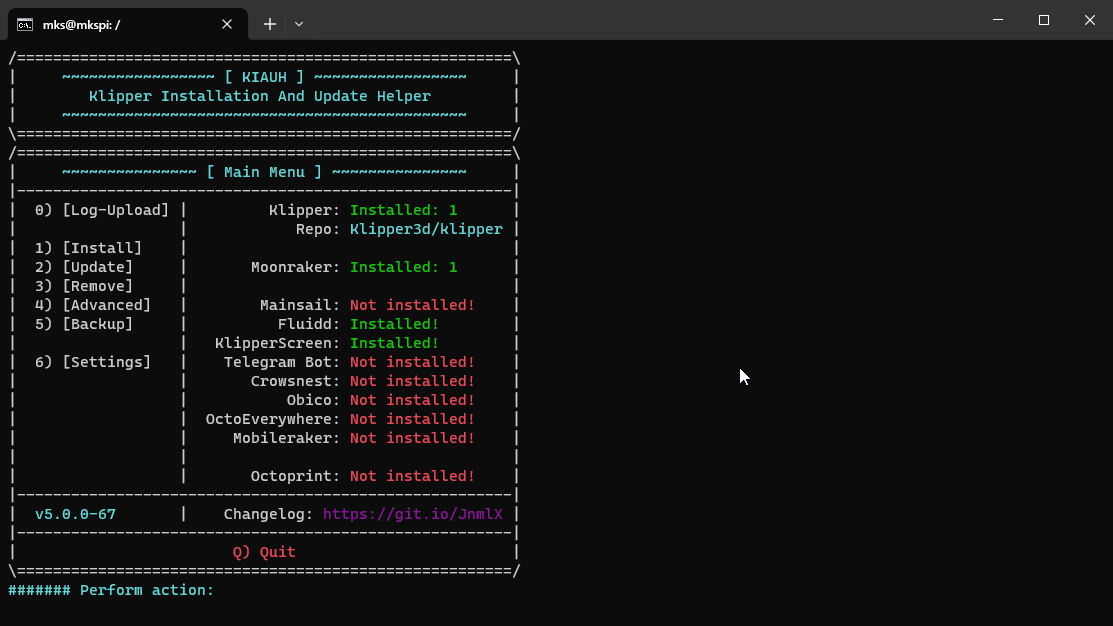
First, we type 3 to get the Remove Menu.

[![image.png](https://openqidi.com/uploads/images/gallery/2024-01/scaled-1680-/6OMvPH1AZRzdBXC2-image.png)](https://openqidi.com/uploads/images/gallery/2024-01/6OMvPH1AZRzdBXC2-image.png)
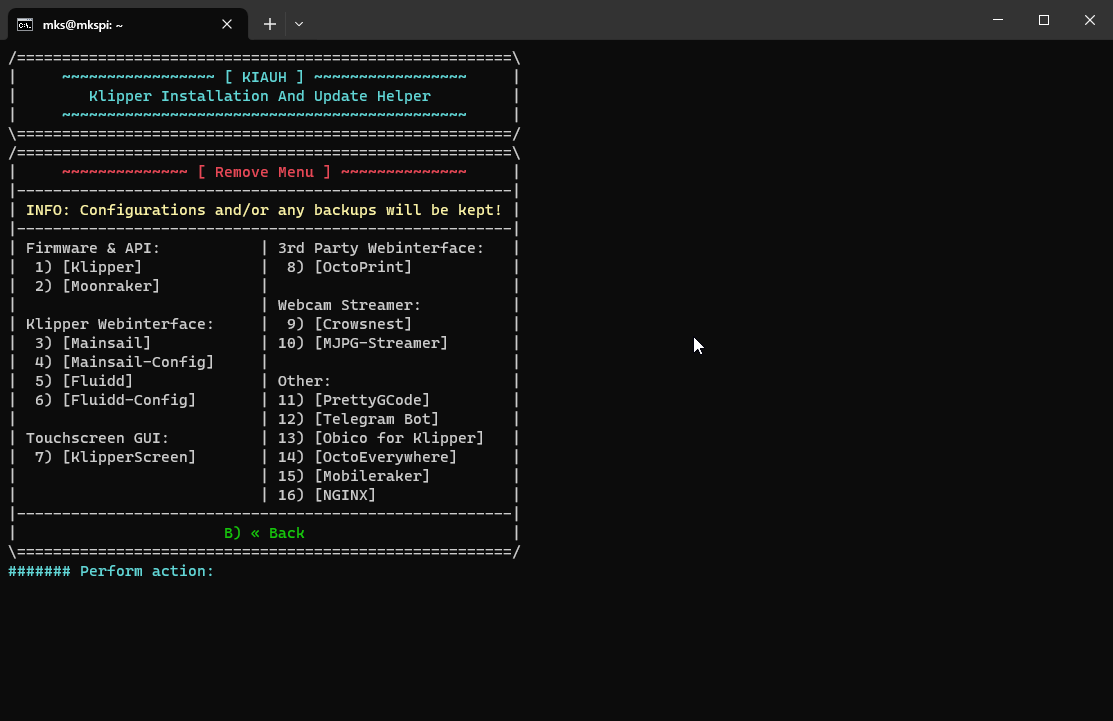
Then we remove 1 Klipper , 2 Moonraker, and 3 Fluidd.

When it returns to the Remove Menu, we will Type B to return to the main menu.

Type 1 for the installation menu

Type 1 to install Klipper.

[![image.png](https://openqidi.com/uploads/images/gallery/2024-01/scaled-1680-/Pz03RR3oW8m7S5cQ-image.png)](https://openqidi.com/uploads/images/gallery/2024-01/Pz03RR3oW8m7S5cQ-image.png)
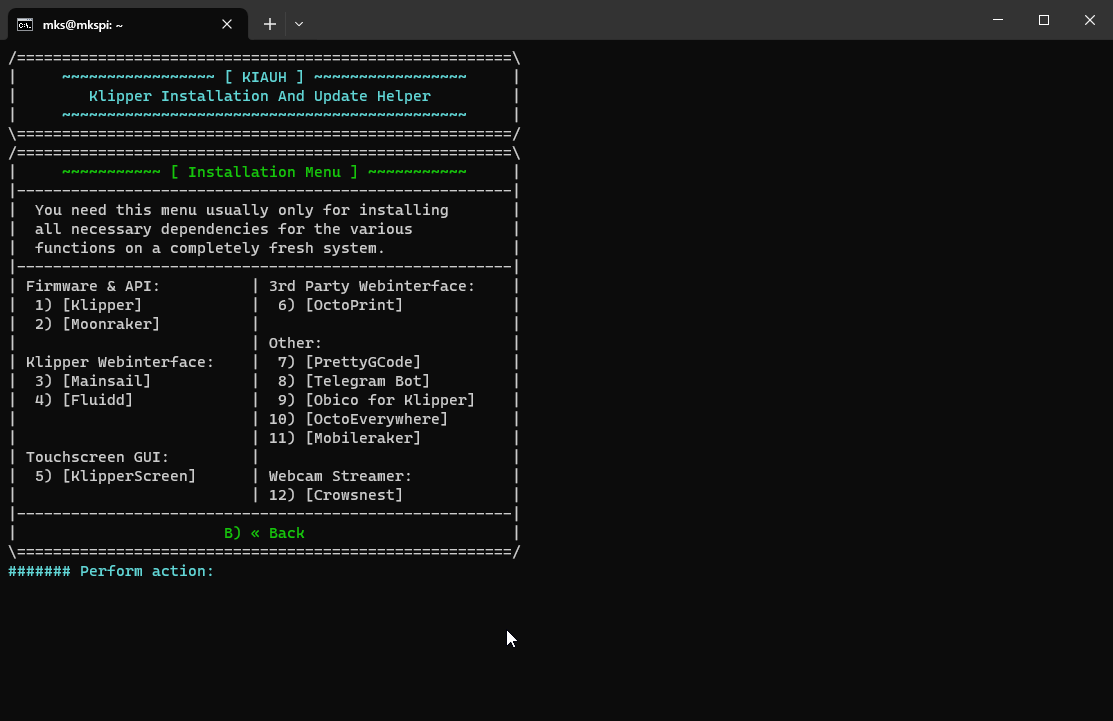
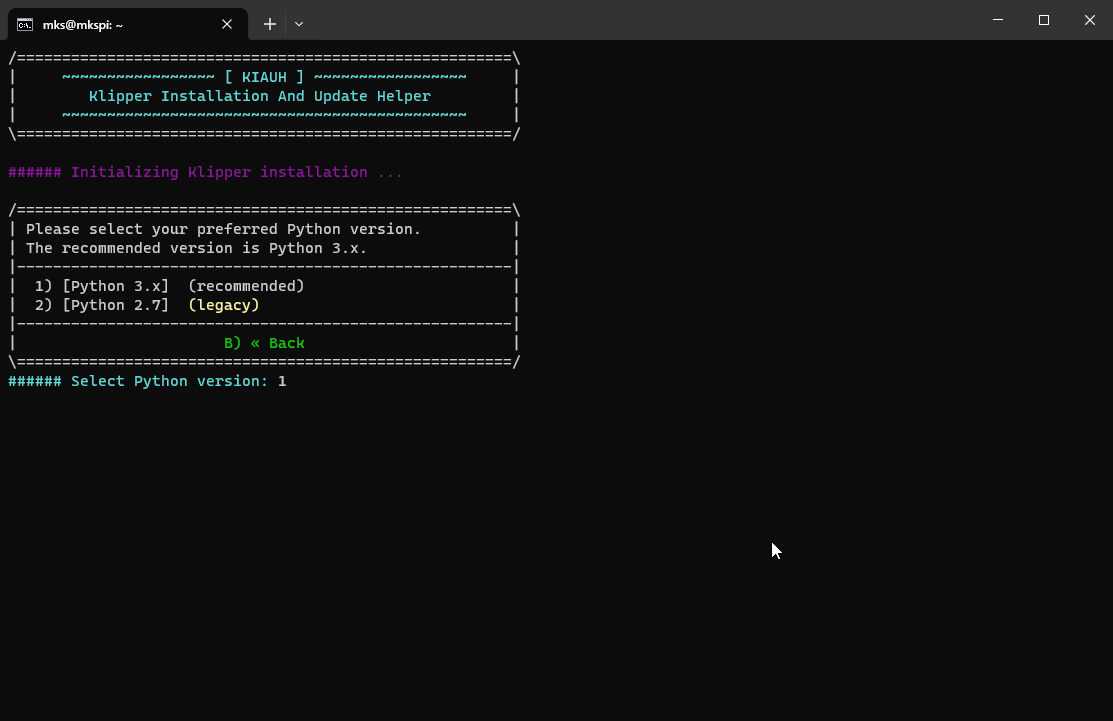
Type 1 to use Python 3.x

[![image.png](https://openqidi.com/uploads/images/gallery/2024-01/scaled-1680-/RG79zmXk4bMzZxs2-image.png)](https://openqidi.com/uploads/images/gallery/2024-01/RG79zmXk4bMzZxs2-image.png)
Type 1 to run one instance of Klipper

[![image.png](https://openqidi.com/uploads/images/gallery/2024-01/scaled-1680-/bjaHqx6CysF9az7X-image.png)](https://openqidi.com/uploads/images/gallery/2024-01/bjaHqx6CysF9az7X-image.png)
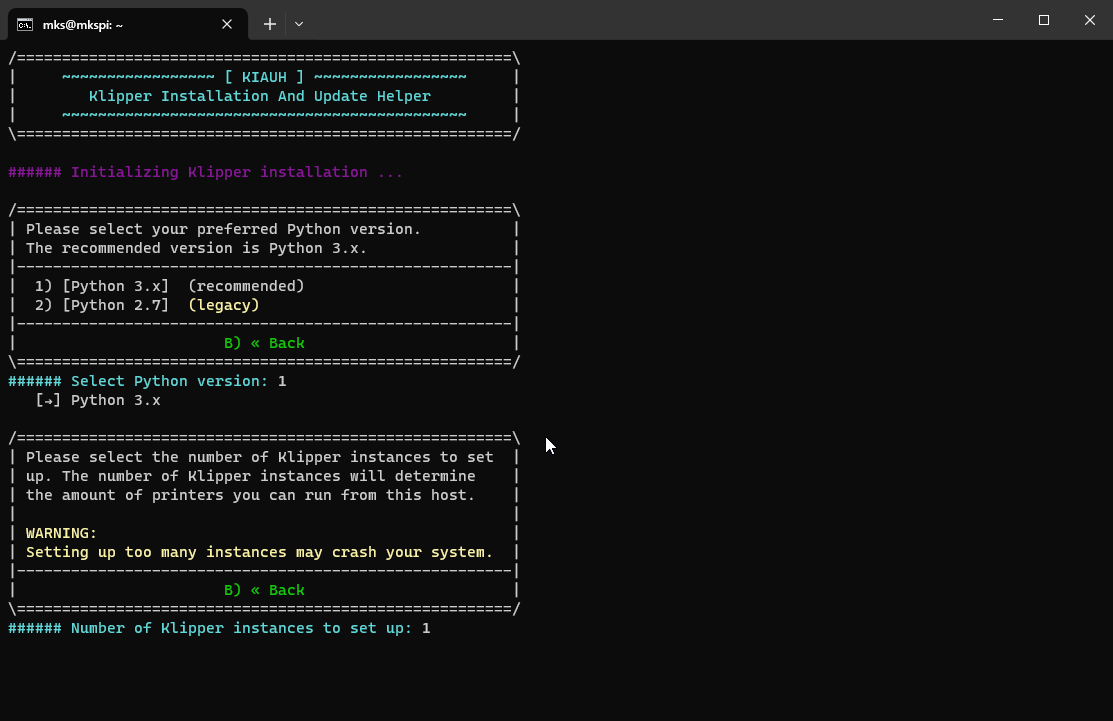
Wait for it to install.

When KIAUH returns to the Installation menu, Type 2 to install Moonraker and wait for the install. Then install 4 Fluidd, answering yes to the questions it asks.

[![image.png](https://openqidi.com/uploads/images/gallery/2024-01/scaled-1680-/6k2KwIMV8mcVROtv-image.png)](https://openqidi.com/uploads/images/gallery/2024-01/6k2KwIMV8mcVROtv-image.png)
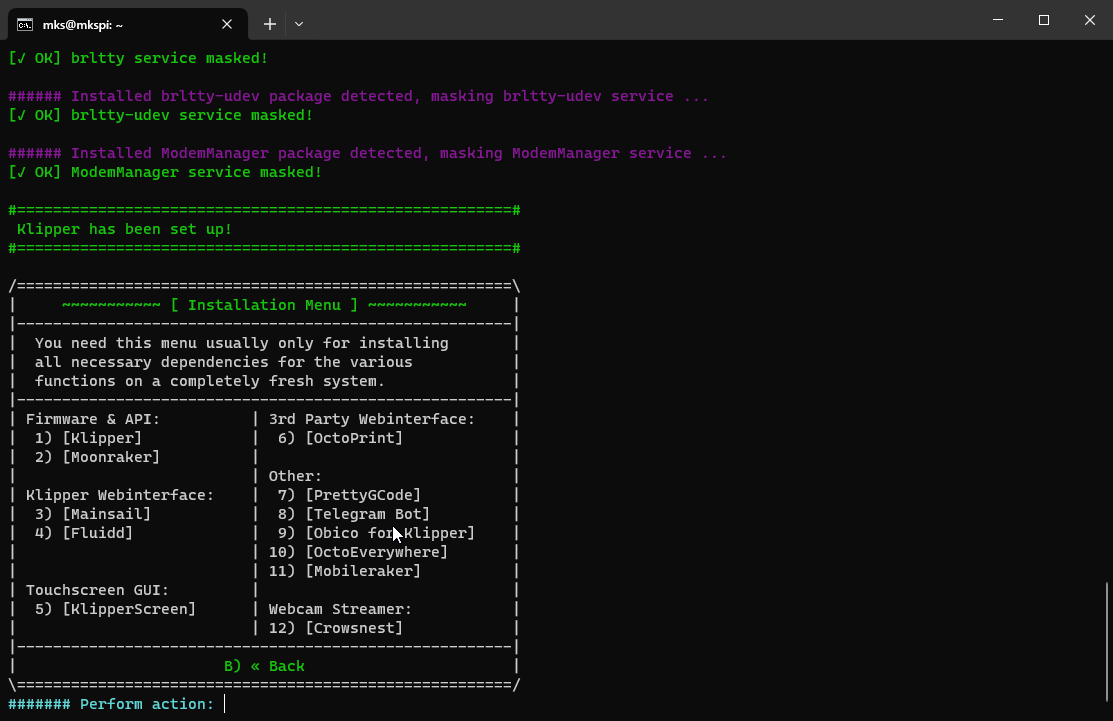
Type B to return to the main menu and 2 to go to the Upgrade Menu.

Type 4 to upgrade Fluidd, then return to the main menu.

Type 4 to go to the Advanced Menu.

In the Advanced Menu, we just want to build the firmware. Select: 2

[![image.png](https://openqidi.com/uploads/images/gallery/2024-01/scaled-1680-/M5zVrFOvA9DLwz9A-image.png)](https://openqidi.com/uploads/images/gallery/2024-01/M5zVrFOvA9DLwz9A-image.png)
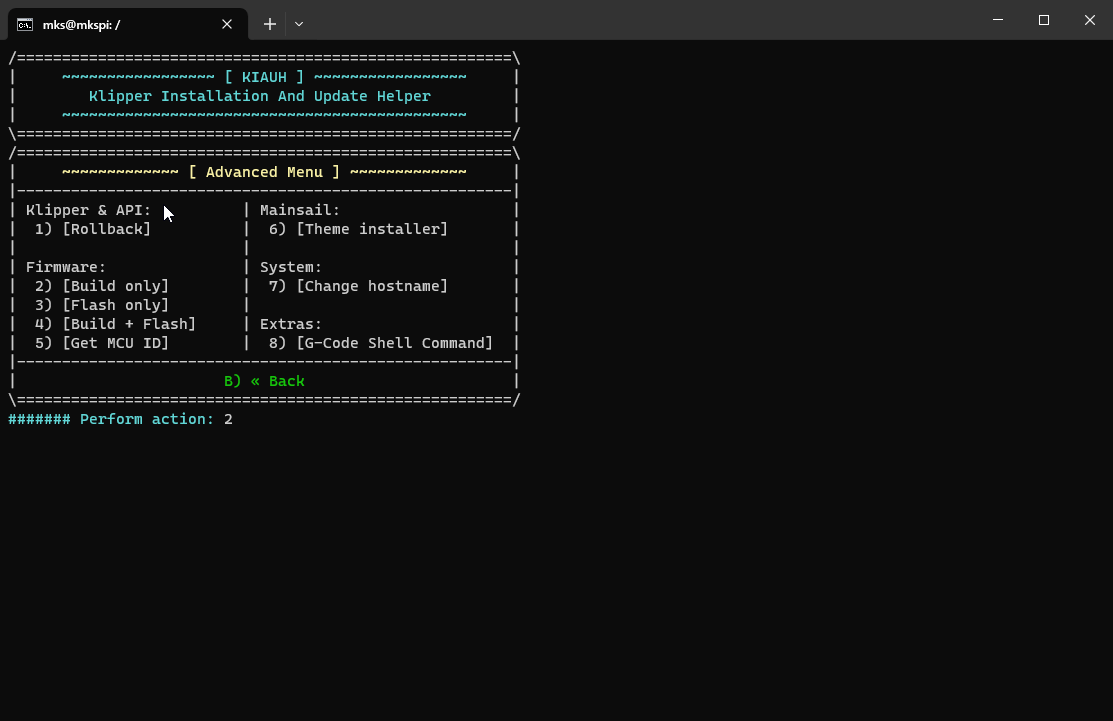
## MCU Settings

The next screen you will see is the Klipper Firmware Configuration screen. Here, we will need to change the settings to match our toolhead mcu. Press space or enter to select items.

Select: Enable extra low-level configuration options

Select: Micro-controller Architecture (Raspberry Pi RP2040)

Then, leave everything else alone.

[![image.png](https://openqidi.com/uploads/images/gallery/2024-01/scaled-1680-/twOx8KWvJdDA4EpW-image.png)](https://openqidi.com/uploads/images/gallery/2024-01/twOx8KWvJdDA4EpW-image.png)
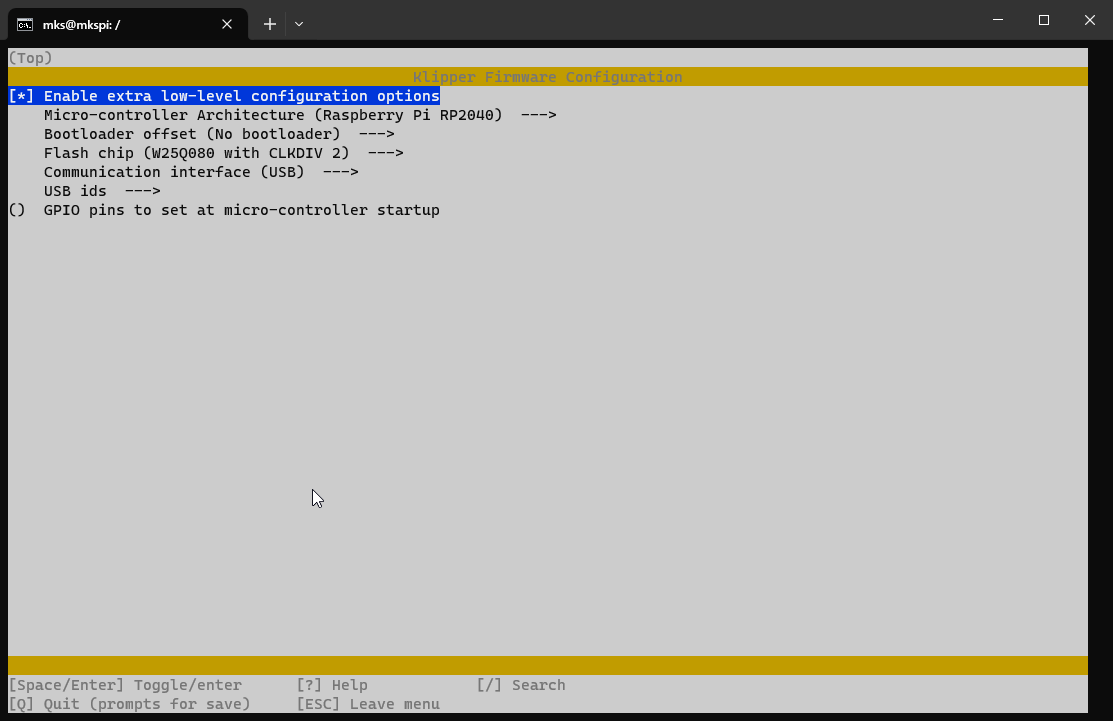
Press Q, then Y to save. The firmware will be built, and it will return us to the Advanced Menu.

Now, we want to quit KIAHU. Press B to return to the Main Menu and Q to quit.

# Setting the toolhead to DFU mode

Setting the toolhead to DFU mode requires you to remove the back cover of the toolhead.  
On the bottom left, there are two buttons labeled BOOT and RESET.

[![image.png](https://openqidi.com/uploads/images/gallery/2024-01/scaled-1680-/asooRIZ6sCTCUZDj-image.png)](https://openqidi.com/uploads/images/gallery/2024-01/asooRIZ6sCTCUZDj-image.png)
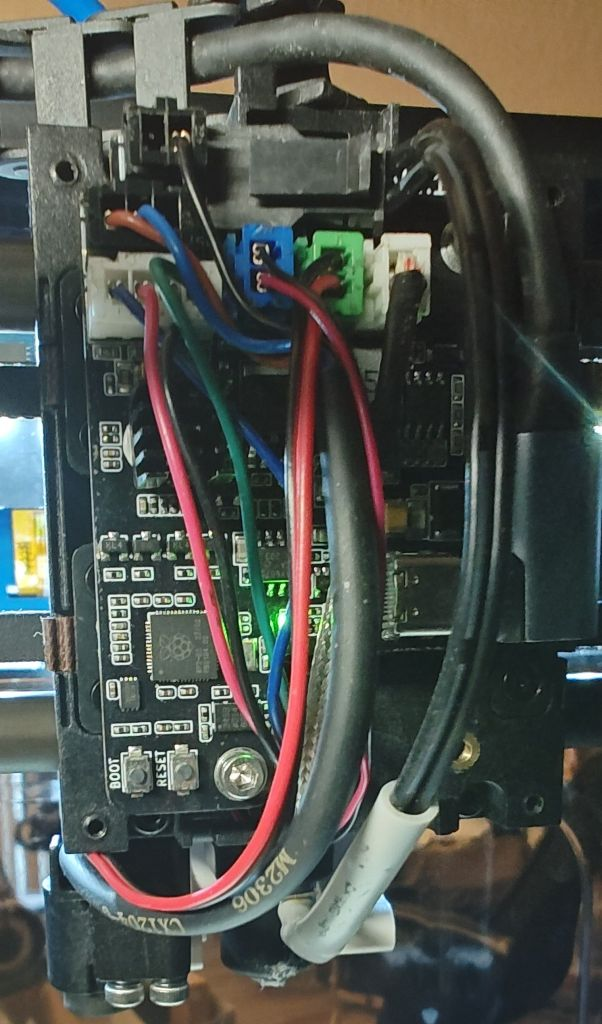
The easiest way to put it into DFU mode is to press and hold the BOOT button, press and release the RESET button, and then release the BOOT button.

> <span style="color: rgb(241, 196, 15);">You have to press the reset button while still holding the boot button.</span>

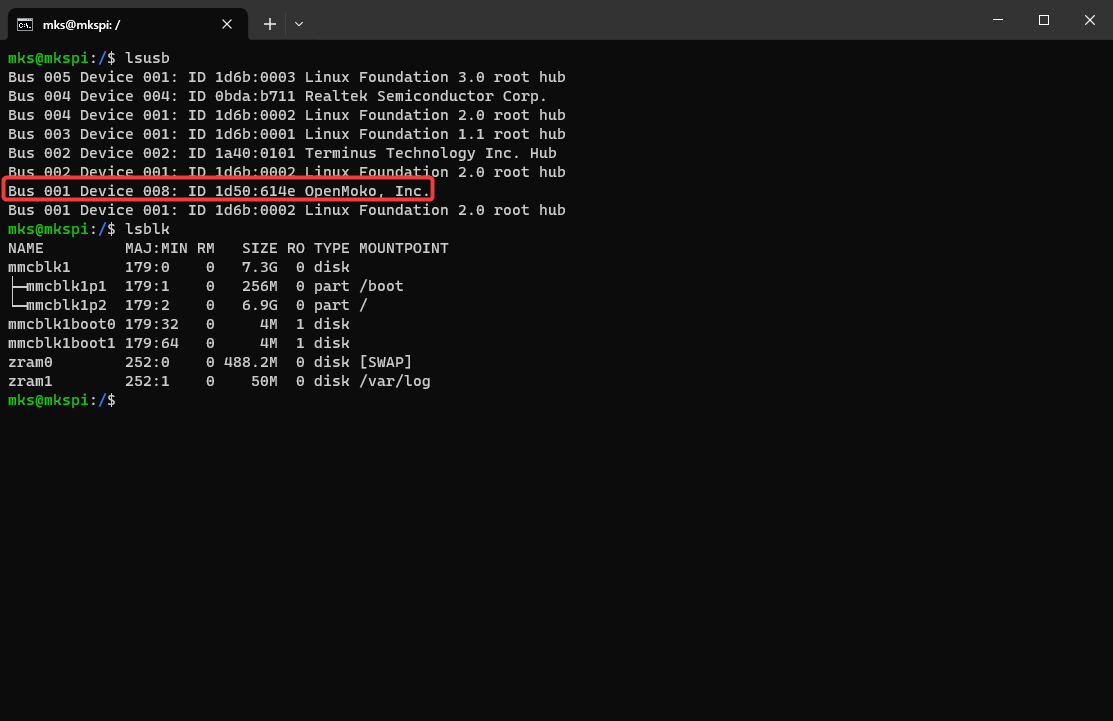
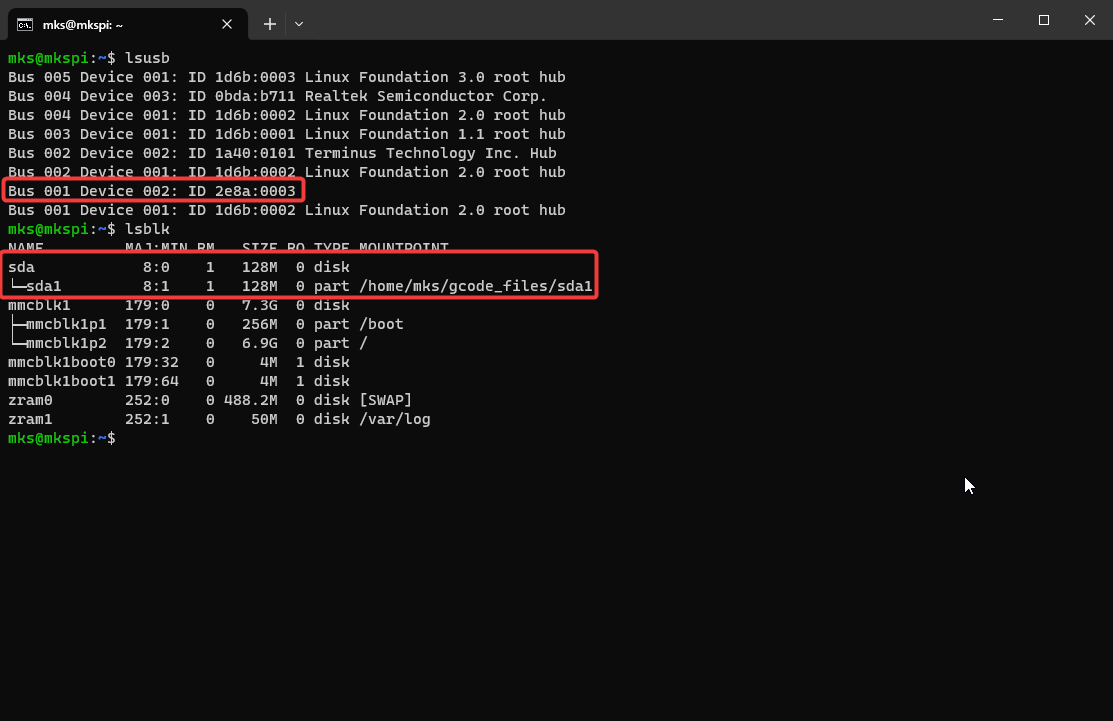
To check if your toolhead is in DFU mode, type:

```
lsusb
lsblk
```

> <span style="color: rgb(53, 152, 219);">If you see an OpenMoko, Inc. device, it is not in DFU mode.</span>

[![image.png](https://openqidi.com/uploads/images/gallery/2024-01/scaled-1680-/FVQY3Q0UImt9L5pG-image.png)](https://openqidi.com/uploads/images/gallery/2024-01/FVQY3Q0UImt9L5pG-image.png)

> <span style="color: rgb(45, 194, 107);">If you do not see an OpenMoko, Inc. device AND a sda disk with a MOUNTPOINT of /home/mks/gcode\_files/sda1 the toolhead is in DFU mode.</span>
> 
> <span style="color: rgb(45, 194, 107);">The disk name may also be named sda, sdb, sdc, etc.</span>

[![image.png](https://openqidi.com/uploads/images/gallery/2024-01/scaled-1680-/nj5kubnv5WG3aFR2-image.png)](https://openqidi.com/uploads/images/gallery/2024-01/nj5kubnv5WG3aFR2-image.png)

# Uploading the Firmware

Now that the toolhead is in DFU mode, it will show up as a USB drive to the printer. Luckily QIDI decided to auto-mount USB drives for us.

To upload the firmware, we simply need to copy the compiled Klipper firmware file to the toolhead.

To do that type:

```bash
cp ~/klipper/out/klipper.uf2 ~/gcode_files/sda1/
```

As soon as the file is copied, the toolhead will no longer be in DFU mode and it will disconnect the drive.

# Finishing Up

## Completing Moonraker Update

Turn the printer off and on. Then, connect to the web interface. In the console, you may see Moonraker prompting you to go to a specific IP address to complete the update.

[![image.png](https://openqidi.com/uploads/images/gallery/2024-01/scaled-1680-/Cxe92aIJ0pubwYqD-image.png)](https://openqidi.com/uploads/images/gallery/2024-01/Cxe92aIJ0pubwYqD-image.png)
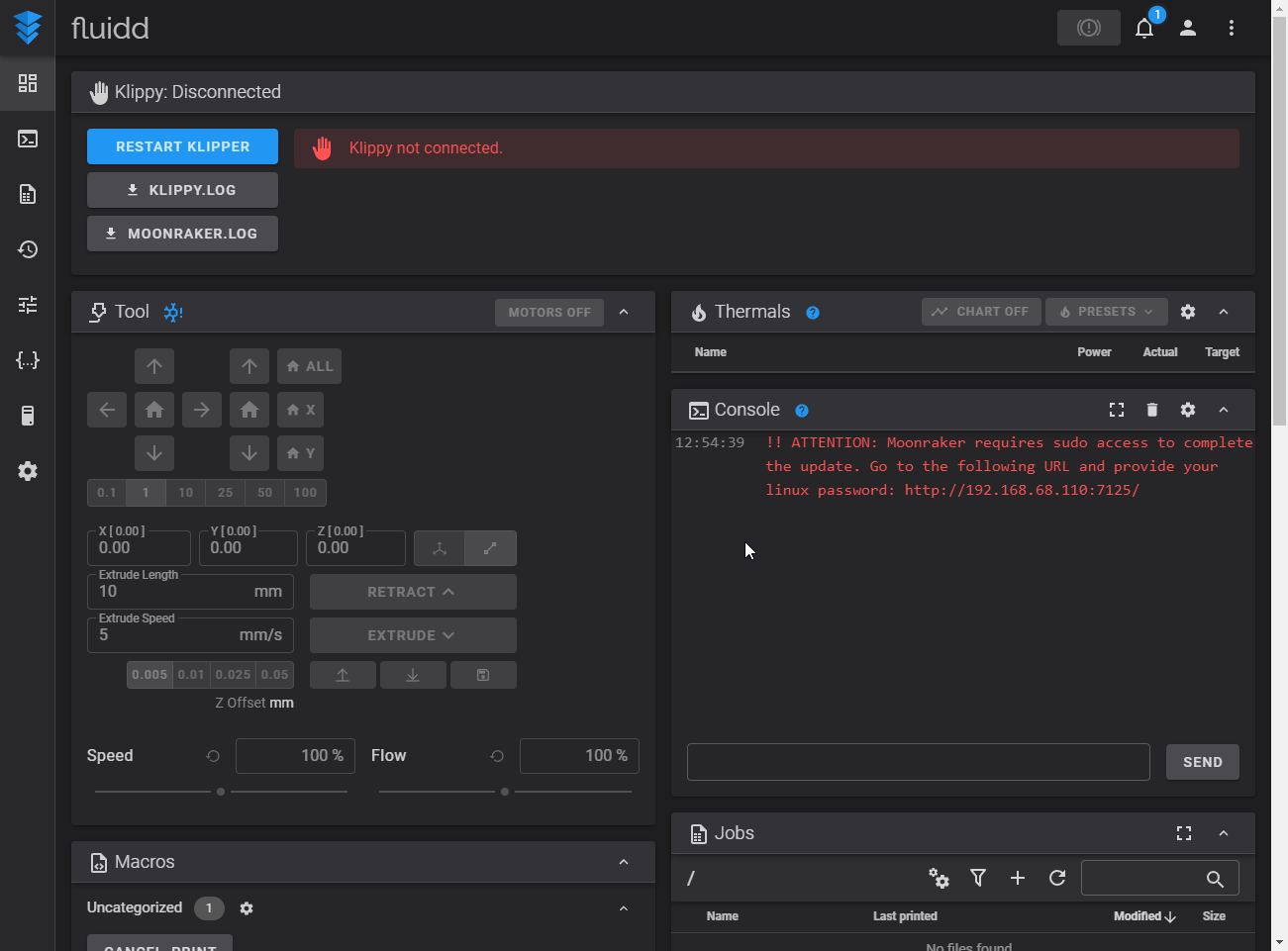
[![image.png](https://openqidi.com/uploads/images/gallery/2024-01/scaled-1680-/qnPwfgi6foO3q5m6-image.png)](https://openqidi.com/uploads/images/gallery/2024-01/qnPwfgi6foO3q5m6-image.png)
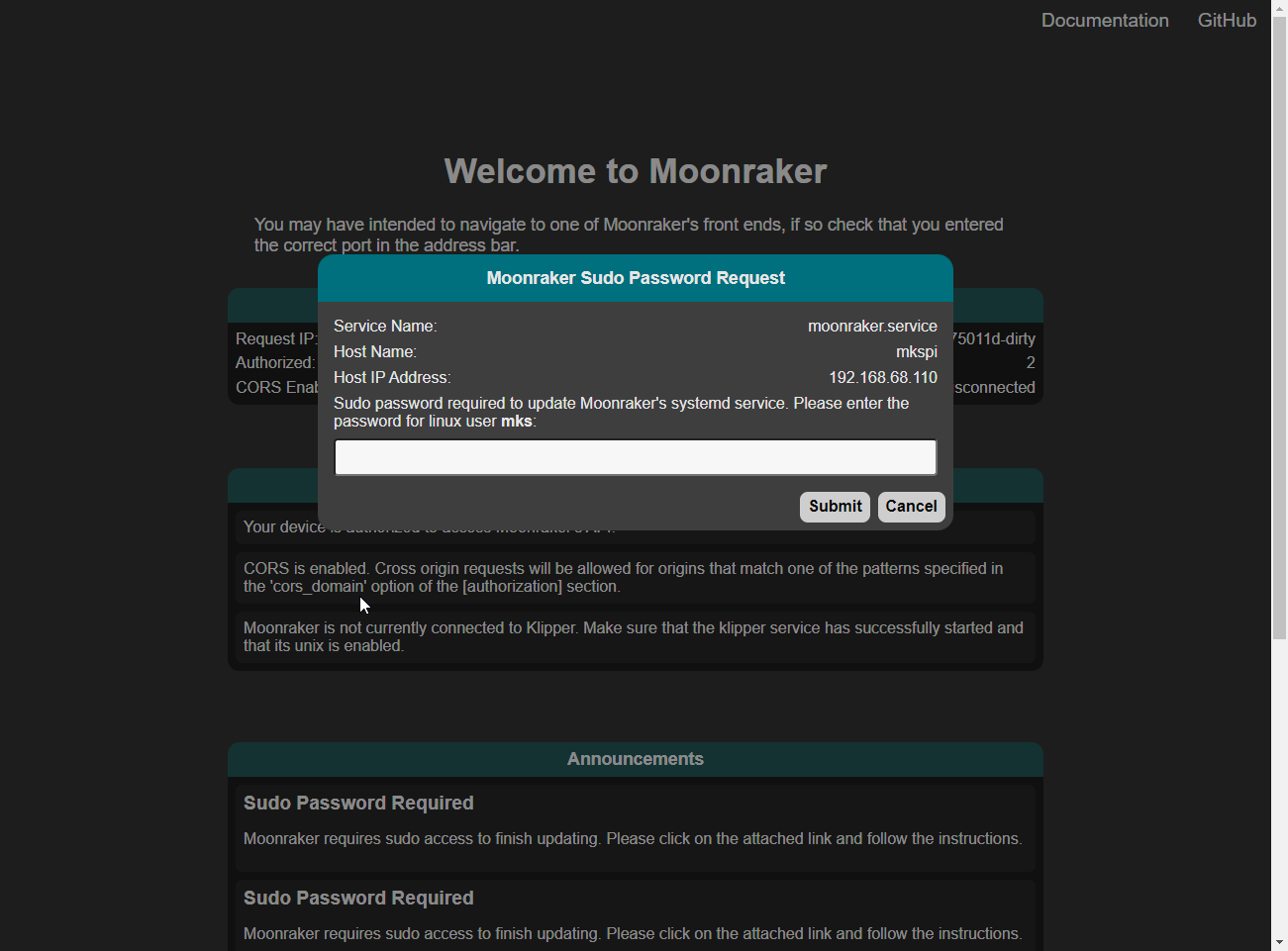
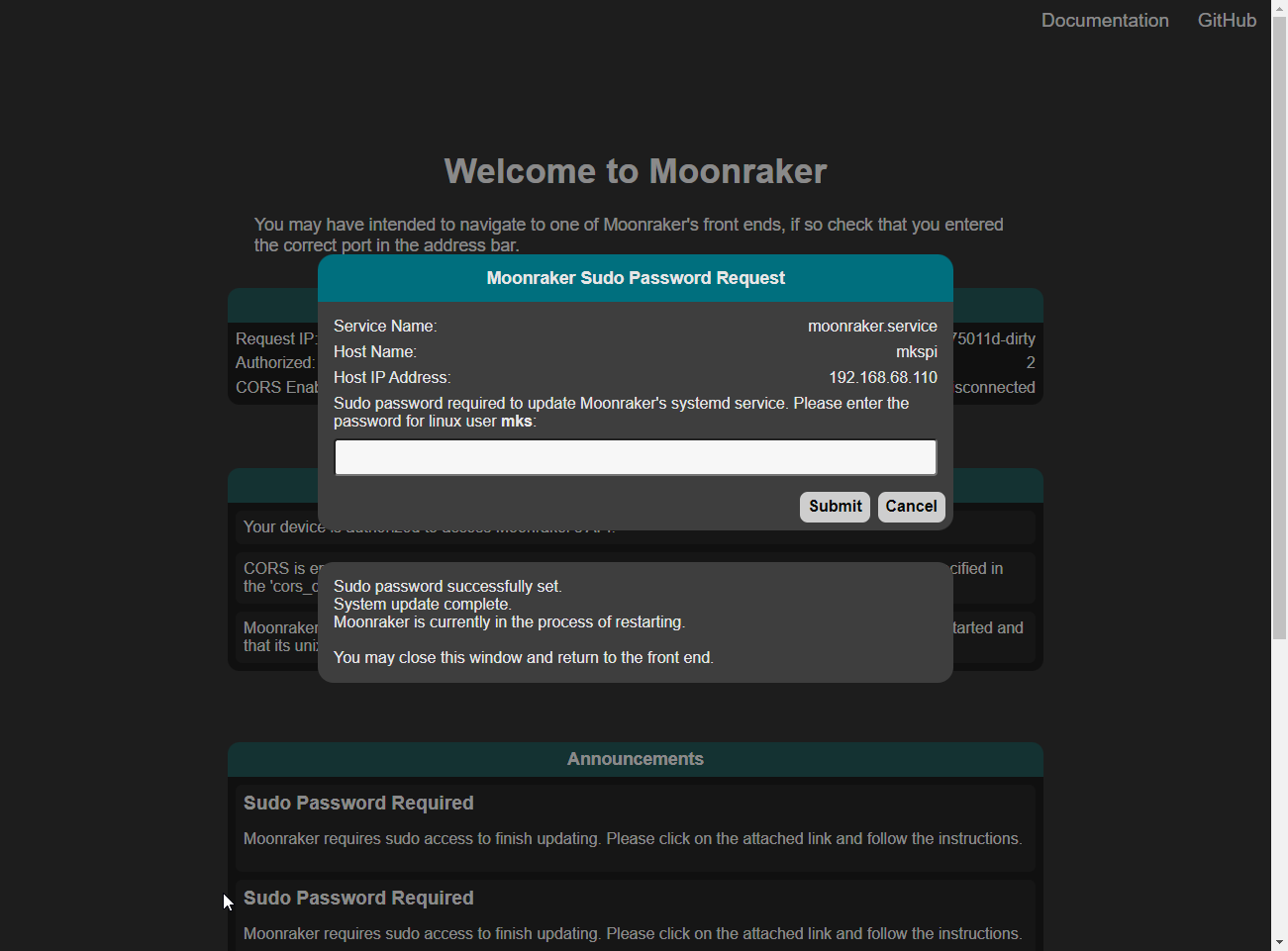
Type your mks user password and close the window.

[![image.png](https://openqidi.com/uploads/images/gallery/2024-01/scaled-1680-/xzwABfL8tATfr9QD-image.png)](https://openqidi.com/uploads/images/gallery/2024-01/xzwABfL8tATfr9QD-image.png)
## Restoring Settings

The new version of Klipper and Moonraker keep their save settings in a different location. We will copy them there.

```
cp -r ~/klipper_config/* ~/printer_data/config
```

## Connecting Klippy

The location of the klippy\_uds\_address has changed. If it tells you "klippy not connected" this may help repair it. From the web interface, edit moonraker.conf to change it to this:

```klipper-config
klippy_uds_address: ~/printer_data/comms/klippy.sock
```

## Restoring Qidi Gcode functionality

QIDI added a feature that automatically mounted USB drives which is nice. But in their infinite wisdom, they decided to hard-code the location in their client. So, updating Klipper and Moonraker breaks it. There are 2 methods to fix it.

Patch it:

```
sed -i 's/printer_data/gcodes/gcode_files/g' ~/printer_data/systemd/moonraker.env
```

> <span style="color: rgb(53, 152, 219);">This method will keep the functionality and directories as it was, but may break in a future update.</span>

Create a Symlink:

To fix it, a folder needs to be deleted and the old folder symlinked into its place, and the config changed. This method should last longer.

```
rm -r /home/mks/printer_data/gcodes/
```

```
ln -s /home/mks/gcode_files /home/mks/printer_data/gcodes
```

```
sed -i 's:~/gcode_files:~/printer_data/gcodes:g' ~/printer_data/config/printer.cfg
```

## Updating the printer.cfg

Some commands in printer.cfg have been changed. To update them, run:

```klipper-config
sed -i 's:printer.probe\["x_offset"\]:printer.configfile.settings.probe.x_offset:g' ~/printer_data/config/printer.cfg
```

```bash
sed -i 's:printer.probe["y_offset"]:printer.configfile.settings.probe.y_offset:g' ~/printer_data/config/printer.cfg
```

# Precautions and incompatibilities

The versions of Klipper, Moonraker, and Fluidd installed will be updated. Avoid using the Qidi updates, it will overwrite the updated installation and the versions may be incompatible.

> <span style="color: rgb(224, 62, 45);">There is an issue with saving the z offset if you run the official/mainline version of Klipper. The software Qidi runs on the machine saves it's own copy of the zoffset. It interferes with klipper by adding it's copy of the zoffset to klippers zoffset resulting in either printing in the air, or grinding into your print bed.</span>

# Beacon Rev H Probe Installation

In case you need the mount for Rev H check this one out.

[https://www.printables.com/model/727356-qidi-x-3-series-beacon-rev-h-probe-mount-further-i](https://www.printables.com/model/727356-qidi-x-3-series-beacon-rev-h-probe-mount-further-i)

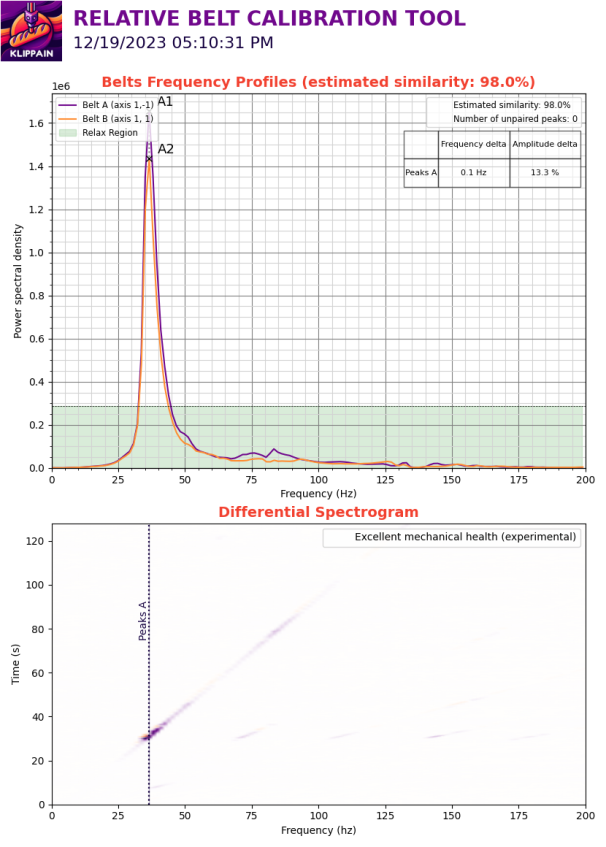
# Shaketune Klippain Belt Magic

### You want to use the fantastic Shaketune Repo for your Qidi?

####   


<p class="callout danger">**Note: latest version of Klippain requires an updated version of Klipper. Therefore it is not possible to achieve the installation of Klippain following the guide below.**</p>

<p class="callout warning">**Older version of Klippain 2.5.0 is also not working because of missing dependency on matplotlib==3.8.2 that cannot be installed on latest Qidi firmware (Jan 2024).**</p>

**You can try to use the old version of Klippain 1.2.0**

---

With those limitations in mind, continue on:

No Prob. Go here and install everything:

[https://github.com/Frix-x/klippain-shaketune/blob/main/install.sh](https://github.com/Frix-x/klippain-shaketune/blob/main/install.sh)

[![image.png](https://openqidi.com/uploads/images/gallery/2024-02/scaled-1680-/yW0Kn5MJerhT1o4P-image.png)](https://openqidi.com/uploads/images/gallery/2024-02/yW0Kn5MJerhT1o4P-image.png)
### Preparation

Qidi uses old v10 Klipper in the stock configuration. This means you have problems and manually need to change pathways.

Before you do anything set the system time correct via SSH!

#### SSH:

ssh mks@IP   
password: makerbase

####   
NTP install and useful alternatives to check out:

apt install ntp  
and then   
dpkg-reconfigure tzdata to select timezone

sudo date -s '2023-12-02 10:22:00'  
sudo ntpdate -s ntp.ubuntu.com  
(doesn't work)

#### \_\_\_\_\_\_\_\_\_\_\_\_\_

  
https://klp1.com/issues/wrong-time/

Wrong system time &amp; date - KLP1 Knowledge Base  
Fix wrong time and/or date that's showing in history, logs and console  
Wrong system time &amp; date - KLP1 Knowledge Base

if chrony doesn't autostart you can add a crontab line from root account  
@reboot /usr/sbin/chronyd

Wrong system time &amp; date  
SSH to the IP address of KLP1.

Login with username root and password makerbase.

Run command sudo dpkg-reconfigure tzdata and select your timezone.

Time zone should now be set correctly, now you need to enable time syncing.

Run sudo apt-get install chrony -y.

This will uninstall ntp and install chrony, a service used to sync time.s

Run timedatectl to check if the time and date are now properly synced.

mks@mkspi:~$ timedatectl  
 Local time: Fri 2023-11-17 21:56:55 CET  
 Universal time: Fri 2023-11-17 20:56:55 UTC  
 RTC time: Fri 2023-11-17 20:56:54  
 Time zone: Europe/Zagreb (CET, +0100)  
System clock synchronized: yes  
 NTP service: inactive  
 RTC in local TZ: no  
Comments

#### Change pathways

Qidi uses other paths for Klipper binaries and config in stock v10 Klipper.

You simply need to adjust those paths used by all python scripts.

  
Klipper config -&gt; /home/mks/klipper\_config/  
Klipper binaries -&gt; /home/mks/klipper/


#### Copy commands:

Copy Command to transfer stuff and generated graphs to your USB drive.

cp

cd /printer\_data/config/K-ShakeTune\_results/belts  
cd printer\_data/config/K-ShakeTune\_results/  
cd /home/mks/gcode\_files/sda1

cp -r K-ShakeTune\_results /home/mks/gcode\_files/sda1/20231203

mks@mkspi:~/printer\_data/config/K-ShakeTune\_results/belts$ cp belts\_20231126\_053146.png /home/mks/gcode\_files/sda1/belts\_20231126\_053146.png

# Make WiFi work on vanilla Klipper Qidi machines with Tenda dongle and RTL8188GU chip

You have a Vanilla Klipper installed on your machine!?

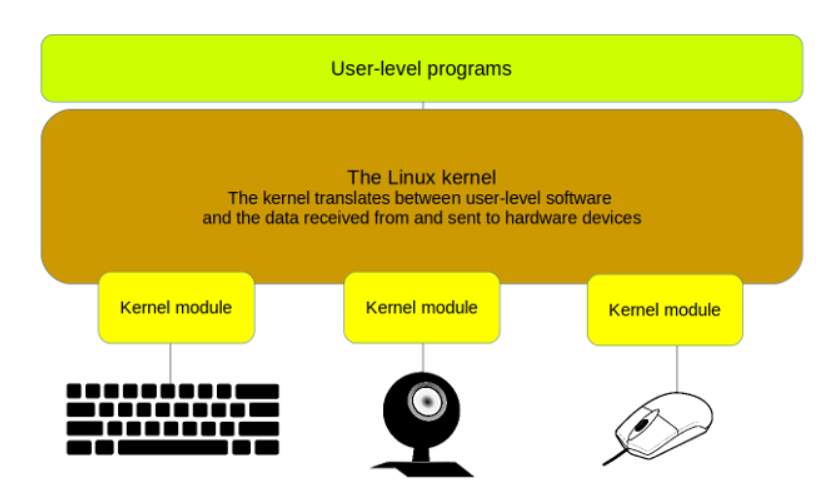
To enable WiFi on the Qidi machine a kernel module has to be loaded and will manage the WiFi dongle present in your machine. Qidi machines coming with a Tenda technlogies dongle equipped with RTL8188GU chip.

Some Linux commands are required to make it work.Please dig into it and understand what it means. I will summarize the most important things here.

[![image.png](https://openqidi.com/uploads/images/gallery/2024-05/scaled-1680-/Sgksp1LShb9Qfvv6-image.png)](https://openqidi.com/uploads/images/gallery/2024-05/Sgksp1LShb9Qfvv6-image.png)
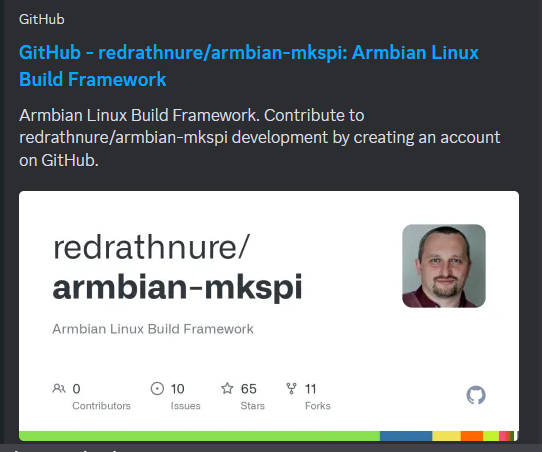
1\) You should use a rather new version of Armbian. I use this fantastic release here:

[https://github.com/redrathnure/armbian-mkspi](https://github.com/redrathnure/armbian-mkspi)

[![image.png](https://openqidi.com/uploads/images/gallery/2024-05/scaled-1680-/bEhj5jjzjxTAGHbX-image.png)](https://openqidi.com/uploads/images/gallery/2024-05/bEhj5jjzjxTAGHbX-image.png)
2\) Depending on your release you have to make sure that you de-freeze your Kernel and install Kernel headers. This is required because you need usb-modeswitch. In case you install

However in case you use [0.3.4-24.2.0-trunk](https://github.com/redrathnure/armbian-mkspi/releases/tag/mkspi%2F0.3.4-24.2.0-trunk) with an edge 6.7 Kernel all your problems are solved and you can jump to the next step.

#### Update your system

`sudo apt-get update`

#### Install armbian firmware

`sudo apt-get install armbian-firmware-full`

#### List your usb devices, possibly you see realtek device in "CD ROM Mode"

`lsusb`

#### Fix with usb-modeswitch

`sudo apt-get install usb-modeswitch`

#### command

`sudo usb_modeswitch -KW -v 0bda -p 1a2b`

###   


If successful you see something like this:

[![image.png](https://openqidi.com/uploads/images/gallery/2024-05/scaled-1680-/jLbPBmb6FmWbnVkg-image.png)](https://openqidi.com/uploads/images/gallery/2024-05/jLbPBmb6FmWbnVkg-image.png)

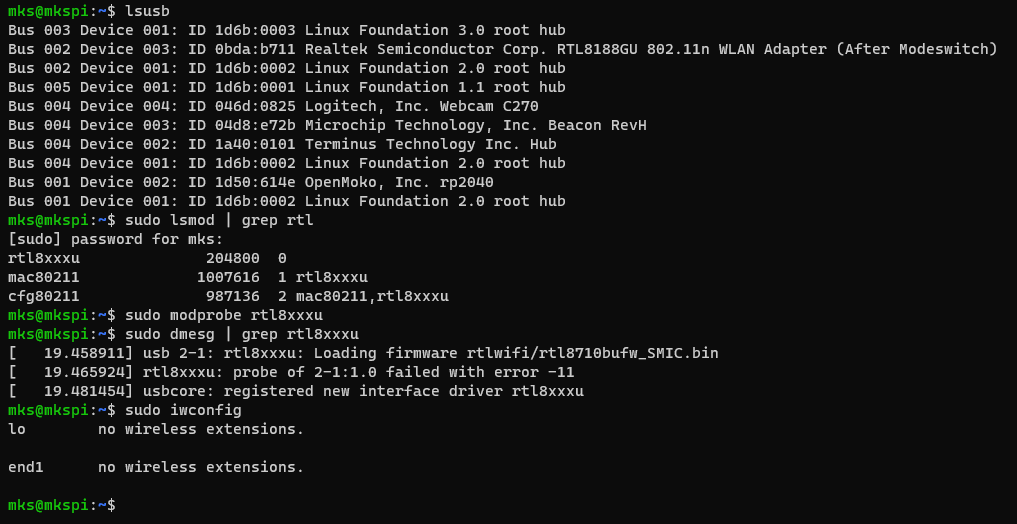
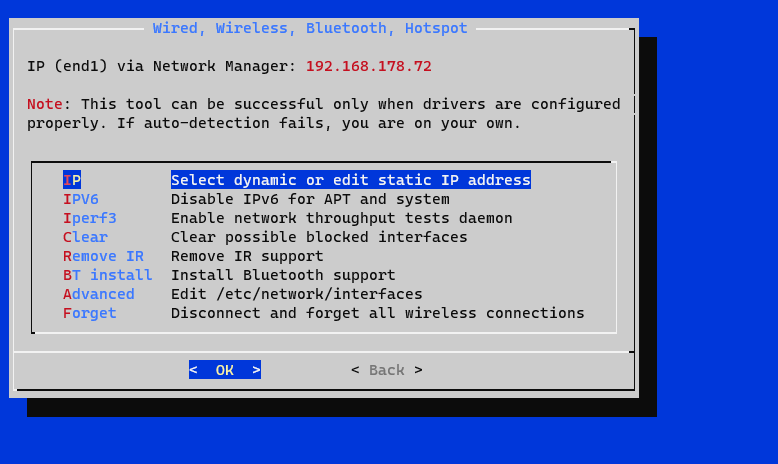
3\) Check if you have the module up and runnng. In my case it never worked.

perform: `sudo armbian-config `or `nmtui`

No wireless device is showing up here...

[![image.png](https://openqidi.com/uploads/images/gallery/2024-05/scaled-1680-/EERnZ8bzXnB1TIyG-image.png)](https://openqidi.com/uploads/images/gallery/2024-05/EERnZ8bzXnB1TIyG-image.png)
Also check your status from time to time with these useful commands:

`lsusb`

`lsblk`

`sudo iwconfig`

[![image.png](https://openqidi.com/uploads/images/gallery/2024-05/scaled-1680-/csXVUqNR6NPBeMOy-image.png)](https://openqidi.com/uploads/images/gallery/2024-05/csXVUqNR6NPBeMOy-image.png)
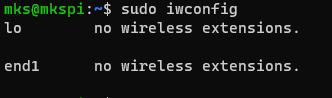
I loaded rtl8xxxu module with `sudo lsmod | grep rtl` and `sudo modprobe rtl8xxxu`<svg aria-hidden="true" class="icon__1a2d2" fill="none" height="18" role="img" viewbox="0 0 24 24" width="18" xmlns="http://www.w3.org/2000/svg"></svg>

[![image.png](https://openqidi.com/uploads/images/gallery/2024-05/scaled-1680-/Ukg5mxzG95jiHX62-image.png)](https://openqidi.com/uploads/images/gallery/2024-05/Ukg5mxzG95jiHX62-image.png)

Still no effect. Really dont know why. It should work by now.

4\) Install another driver! What worked for me is this one from wandercn. There are many other drivers available but this one is stable and fast. (Source: [https://github.com/wandercn/RTL8188GU](https://github.com/wandercn/RTL8188GU))

```
lsusb|grep WLAN
```

<div class="snippet-clipboard-content notranslate position-relative overflow-auto" id="bkmrk--8"><div class="zeroclipboard-container"><svg aria-hidden="true" class="octicon octicon-copy js-clipboard-copy-icon" data-view-component="true" height="16" version="1.1" viewbox="0 0 16 16" width="16"></svg>  
</div></div>WLAN model is "RTL8188GU"

Build kernel to get linux-headers. Should be done in previous step or simply come with a suitable releas.

Install the required packages and reboot

```
sudo apt install -y bc build-essential git

sudo reboot


```

<div class="snippet-clipboard-content notranslate position-relative overflow-auto" id="bkmrk--9"><div class="zeroclipboard-container"><svg aria-hidden="true" class="octicon octicon-copy js-clipboard-copy-icon" data-view-component="true" height="16" version="1.1" viewbox="0 0 16 16" width="16"></svg>  
</div></div>Get source code

```
git clone https://github.com/wandercn/RTL8188GU.git
cd RTL8188GU/8188gu-1.0.1

sudo make

sudo make install


```


Install the required packages and reboot

```
sudo apt install -y dkms bc build-essential git dh-make

sudo reboot


```

<div class="snippet-clipboard-content notranslate position-relative overflow-auto" id="bkmrk--10"><div class="zeroclipboard-container"><svg aria-hidden="true" class="octicon octicon-copy js-clipboard-copy-icon" data-view-component="true" height="16" version="1.1" viewbox="0 0 16 16" width="16"></svg>  
</div></div>DKMS install

```

cd /usr/src

sudo git clone https://github.com/wandercn/RTL8188GU.git

sudo mv RTL8188GU/8188gu-1.0.1 8188gu-1.0.1
sudo rm -rf RTL8188GU

sudo dkms add -m 8188gu -v 1.0.1 

sudo dkms build -m 8188gu -v 1.0.1

sudo dkms install -m 8188gu -v 1.0.1


```

<div class="snippet-clipboard-content notranslate position-relative overflow-auto" id="bkmrk--11"><div class="zeroclipboard-container"><svg aria-hidden="true" class="octicon octicon-copy js-clipboard-copy-icon" data-view-component="true" height="16" version="1.1" viewbox="0 0 16 16" width="16"></svg>  
</div></div>check status

```
 sudo dkms status


```

5\) unplug/re-plug WiFi dongle !!! Most important step. Don know why but do it!

6\) `sudo iwconfig ` shows now something like this. SUCCESS!

[![image.png](https://openqidi.com/uploads/images/gallery/2024-05/scaled-1680-/Oqs4w2JcfJ58yKsJ-image.png)](https://openqidi.com/uploads/images/gallery/2024-05/Oqs4w2JcfJ58yKsJ-image.png)

7\) For the case if it will loose the module after reboot I also added RTL8188GUXX in /etc/modules

Remarks: I still dont know why the armbian release doesen't native support this stick. In my view all requirements are met. However with this little adjustment and the driver from wandercn you have a working solution for your Xmax 3 or X Plus 3 machines.

# Cartographer probe installation on vanilla Klipper

#### <span style="color: rgb(224, 62, 45);">**Disclamer**</span>

<p class="callout danger">All actions are at your own risk. Modifying the printer in this way will invalidate the warranty! None of us are responsible for any problems associated with this manual. If you do not feel comfortable with the steps shown on this page - **STOP**.</p>

<p class="callout danger">Before taking any step, common sense dictates that you read the **ENTIRE GUIDE** before making any changes.</p>


#### Abbreviations

- *configuration file* - /config/printer.cfg file
- *macros* - <span class="navigation-container" data-v-4b5d1549=""><span class="cursor-pointer navigation-segment" data-v-4b5d1549="" role="button" tabindex="0">/config</span></span><span class="navigation-container" data-v-4b5d1549=""><span class="navigation-divider text--disabled" data-v-4b5d1549="">/</span><span data-v-4b5d1549="">macros/macros.cfg file</span></span>
- *homing macro* - <span class="navigation-container" data-v-4b5d1549=""><span class="cursor-pointer navigation-segment" data-v-4b5d1549="" role="button" tabindex="0">/config</span></span><span class="navigation-container" data-v-4b5d1549=""><span class="navigation-divider text--disabled" data-v-4b5d1549="">/</span><span data-v-4b5d1549="">macros/sensorless\_homing\_override.cfg file</span></span>

#### <span class="navigation-container" data-v-4b5d1549=""><span data-v-4b5d1549="">Legend</span></span>

<span style="color: rgb(45, 194, 107);">**<span class="navigation-container" data-v-4b5d1549=""><span data-v-4b5d1549="">Line to be added.</span></span>**</span>

<span style="color: rgb(224, 62, 45);">**<span class="navigation-container" data-v-4b5d1549=""><span data-v-4b5d1549="">Line to be deleted.</span></span>**</span>

#### Introduction

From the moment I discovered Cartographer, I wanted to use it all the time. After waiting for the order and finally being at my desk, I could start the installation and configuration on my QIDI X-Max 3 with Vanilla Klipper \[[1](https://github.com/leadustin/QIDI-up2date-english/blob/main/Klipper-Update/update+upgrade.md)\], because it's always cool to have up to date software and use whatever extension/functionality you want (Spoolman! - from this point on I have a database of my stock). It was not easy, but with the help of McSneaky (he is a f\*cking guru) I was able to say "It's alive! I've included all the sources at the bottom of the page if you want to dig deeper (do it - I encourage you NOT to trust me and check every point, even though the whole setup works).

##### To do

- set the position of the nozzle when homing to the centre of the bed (there is no effect on the bed mesh or the probe behaviour).

##### TL;DR

Configuration files (<span style="color: rgb(35, 111, 161);">**blue pill**</span>).

Use my configuration file and the macros \[[2](https://drive.google.com/file/d/15s56RrGnDsqp3EQyPislcNXO5nyOK20N/view?usp=drive_link)\] that works with the printer. Note that you'll have defined all the plugins I use in my setup (Spoolman, Crownest, etc). I encourage you to modify your printer files to match your setup. You have been warned.

#### Hardware

This article is not intended to guide you through the full installation process on the printer itself, but in a nutshell; download the probe holder model provided by McSneaky \[[3](https://www.printables.com/pl/model/692991-qidi-x3-series-beacon-cartographer-probe-low-profi)\] (make sure you print in min. ABS/ASA - my suggestion - PC).

#### Software

(<span style="color: rgb(186, 55, 42);">**red pill**</span>)

##### Installation

Follow the official Cartographer wiki page \[[4](https://docs.cartographer3d.com/cartographer-probe/installation-and-setup/klipper-setup)\]. This is straightforward and requires no change in procedure.

##### Configuration

This is the heart of this guide, as several things need to be modified. At first I followed the official wiki \[[5](https://docs.cartographer3d.com/cartographer-probe/installation-and-setup/cartographer-with-input-shaping-v2-and-v3-hybrid)\], but then I discovered that a few things need to be done differently.

Check your UUID (CAN version) or serial port (USB version):

USB

<div class="group/codeblock grid grid-flow-col max-w-3xl w-full mx-auto decoration-primary/6 page-api-block:ml-0" id="bkmrk-ls-%2Fdev%2Fserial%2Fby-id"><div class="flex items-center justify-start [grid-area:1/1] text-sm gap-2">`ls /dev/serial/by-id/`</div><button class="group-hover/codeblock:opacity-[1] transition-opacity duration-75 opacity-0 text-xs [grid-area:2/1] z-[2] justify-self-end backdrop-blur-md leading-none self-start ring-1 ring-dark/2 text-dark/7 bg-transparent rounded-md mr-2 mt-2 p-1 hover:ring-dark/3 dark:ring-light/2 dark:text-light/7 dark:hover:ring-light/3 print:hidden">  
</button></div>CAN

<div class="group/codeblock grid grid-flow-col max-w-3xl w-full mx-auto decoration-primary/6 page-api-block:ml-0" id="bkmrk-%7E%2Fklippy-env%2Fbin%2Fpyt"><div class="flex items-center justify-start [grid-area:1/1] text-sm gap-2">`~/klippy-env/bin/python ~/klipper/scripts/canbus_query.py can0`</div></div><div class="flex items-center justify-start [grid-area:1/1] text-sm gap-2" id="bkmrk-"></div><div class="flex items-center justify-start [grid-area:1/1] text-sm gap-2" id="bkmrk--1"></div><div class="flex items-center justify-start [grid-area:1/1] text-sm gap-2" id="bkmrk-now-we-need-to-set-c">Now we need to set the Cartographer configuration in the *configuration file*:</div><div class="flex items-center justify-start [grid-area:1/1] text-sm gap-2" id="bkmrk--2"></div><div class="flex items-center justify-start [grid-area:1/1] text-sm gap-2" id="bkmrk--3"></div>> <div class="flex items-center justify-start [grid-area:1/1] text-sm gap-2" id="bkmrk-%5Bcartographer%5Dserial-1">[cartographer]  
> serial:  
> \# Path to the serial port for the Cartographer device. Typically has the form  
> \# /dev/serial/by-id/usb-cartographer_cartographer_...  
> \#   
> \# If you are using the CAN Bus version, replace serial: with canbus_uuid: and add the UUID.  
> \# Example: canbus_uuid: 1283as878a9sd  
> \#  
> speed: 40.  
> \# Z probing dive speed.  
> lift_speed: 5.0  
> \# Z probing lift speed.  
> backlash_comp: 0.5  
> \# Backlash compensation distance for removing Z backlash before measuring  
> \# the sensor response.  
> \#   
> \# Offsets are measured from the centre of your coil, to the tip of your nozzle   
> \# on a level axis. It is vital that this is accurate.   
> \#  
> x_offset: 0.0  
> \# X offset of cartographer from the nozzle.  
> y_offset: 21.1  
> \# Y offset of cartographer from the nozzle.  
> trigger_distance: 2.0  
> \# cartographer trigger distance for homing.  
> trigger_dive_threshold: 1.5  
> \# Threshold for range vs dive mode probing. Beyond `trigger_distance +  
> \# trigger_dive_threshold` a dive will be used.  
> trigger_hysteresis: 0.006  
> \# Hysteresis on trigger threshold for untriggering, as a percentage of the  
> \# trigger threshold.  
> cal_nozzle_z: 0.1  
> \# Expected nozzle offset after completing manual Z offset calibration.  
> cal_floor: 0.1  
> \# Minimum z bound on sensor response measurement.  
> cal_ceil: 5.0  
> \# Maximum z bound on sensor response measurement.  
> cal_speed: 1.0  
> \# Speed while measuring response curve.  
> cal_move_speed: 10.0  
> \# Speed while moving to position for response curve measurement.  
> default_model_name: default  
> \# Name of default cartographer model to load.  
> mesh_main_direction: x  
> \# Primary travel direction during mesh measurement.  
> \#mesh_overscan: -1  
> \# Distance to use for direction changes at mesh line ends. Omit this setting  
> \# and a default will be calculated from line spacing and available travel.  
> mesh_cluster_size: 1  
> \# Radius of mesh grid point clusters.  
> mesh_runs: 2  
> \# Number of passes to make during mesh scan.</div>

<div class="flex items-center justify-start [grid-area:1/1] text-sm gap-2" id="bkmrk--4"></div>Since X-Max 3 has adxl345, I'll ignore the Input Shaper part of the configuration. The next step is to delete the `[probe]` section in the *configuration file:*

> **<span style="color: rgb(224, 62, 45);">\[probe\]</span>**  
> **<span style="color: rgb(224, 62, 45);">pin: ^!MKS\_THR:gpio21</span>**  
> **<span style="color: rgb(224, 62, 45);">x\_offset: 28</span>**  
> **<span style="color: rgb(224, 62, 45);">y\_offset: 4.4</span>**  
> **<span style="color: rgb(224, 62, 45);">\#z\_offset: 0.0</span>**  
> **<span style="color: rgb(224, 62, 45);">speed: 5</span>**  
> **<span style="color: rgb(224, 62, 45);">samples: 2</span>**  
> **<span style="color: rgb(224, 62, 45);">samples\_result: average</span>**  
> **<span style="color: rgb(224, 62, 45);">sample\_retract\_dist: 3.0</span>**  
> **<span style="color: rgb(224, 62, 45);">samples\_tolerance: 0.08</span>**  
> **<span style="color: rgb(224, 62, 45);">samples\_tolerance\_retries:3</span>**

Do NOT add `[safe_z_home]` as suggested in the Cartho wiki. We will use the `[homing_override]` in *homing macro*. It is more elegant.<button class="group-hover/codeblock:opacity-[1] transition-opacity duration-75 opacity-0 text-xs [grid-area:2/1] z-[2] justify-self-end backdrop-blur-md leading-none self-start ring-1 ring-dark/2 text-dark/7 bg-transparent rounded-md mr-2 mt-2 p-1 hover:ring-dark/3 dark:ring-light/2 dark:text-light/7 dark:hover:ring-light/3 print:hidden"></button>

> \[homing\_override\]  
> axes: xyz  
> set\_position\_z: 0  
> gcode:
> 
>  {% set home\_all = 'X' not in params and 'Y' not in params and 'Z' not in params %} #  
>  {% set z\_hop\_speed = (printer.configfile.settings\['stepper\_z'\].homing\_speed \* 30) | float %} #  
>  {% set travel\_speed = (printer.toolhead.max\_velocity \* 30) | float %} #  
>  {% set sensorless\_variables = printer\["gcode\_macro \_Sensorless\_Homing\_Variables"\] %} #  
>  {% set z\_hop\_distance = sensorless\_variables.z\_hop\_distance | float %} # Collect all variables needed for sensorless homing  
>  {% set first\_homed\_axis = sensorless\_variables.first\_homed\_axis | string %} # from machine config file and \_Sensorless\_Homing\_Variables  
>  {% set second\_homed\_axis = sensorless\_variables.second\_homed\_axis | string %} #  
>  {% set safe\_x = sensorless\_variables.safe\_x | float %} #  
>  {% set safe\_y = sensorless\_variables.safe\_y | float %} #  
>  {% set safe\_z = sensorless\_variables.safe\_z\_enable | abs %} #
> 
> <span style="color: rgb(45, 194, 107);"> **{% if printer.configfile.settings.cartographer is defined %} # Check if a third-party \[cartographer\] definiton is used**</span>  
> <span style="color: rgb(45, 194, 107);"> **{% set probe\_name = printer.configfile.settings.cartographer %} # If \[cartographer\] is found in config, set 'probe\_name' as \[cartographer\] config string**</span>
> 
> <span style="color: rgb(224, 62, 45);">**{% if printer.configfile.settings.beacon is defined %} # Check if a third-party \[probe\] definiton is used**</span>  
>  {% elif printer.configfile.settings.beacon is defined %} #   
>  {% set probe\_name = printer.configfile.settings.beacon %} # If \[beacon\] is found in config, set 'probe\_name' as \[beacon\] config string  
>  {% elif printer.configfile.settings.probe is defined %} #  
>  {% set probe\_name = printer.configfile.settings.probe %} # If \[probe\] is found in config, set 'probe\_name' as \[probe\] config string  
>  {% elif printer.configfile.settings.dockable\_probe is defined %} #  
>  {% set probe\_name = printer.configfile.settings.dockable\_probe %} # If \[dockable\_probe\] is found in config, set 'probe\_name' as \[dockable\_probe\] config string  
>  {% elif printer.configfile.settings.bltouch is defined %} #  
>  {% set probe\_name = printer.configfile.settings.bltouch %} # If \[bltouch\] is found in config, set 'probe\_name' as \[bltouch\] config string  
>  {% endif %} #
> 
>  {% if 'probe' in printer.configfile.settings.stepper\_z.endstop\_pin %} # Check if Z is configured to home with a probe and pull config values for  
>  {% set probe\_x\_offset = probe\_name.x\_offset | float %} # X and Y offsets  
>  {% set probe\_y\_offset = probe\_name.y\_offset | float %} #  
>  {% else %} #  
>  {% set probe\_x\_offset = 0 | float %} #  
>  {% set probe\_y\_offset = 0 | float %} # If Z if not homed with a probe, set offsets to 0 (do not apply an offset)  
>  {% endif %} #
> 
>  {% if safe\_x == -128 %} #  
>  {% set safe\_x = (printer.configfile.settings.stepper\_x.position\_max) /2 %} # If safe\_x is '-128', set safe\_x to the center of the X axis  
>  {% endif %} #
> 
>  {% if probe\_x\_offset &lt; 0 %} #  
>  {% set safe\_x = safe\_x + probe\_x\_offset %} #  
>  {% elif probe\_x\_offset &gt; 0 %} # Depending on if probe\_x\_offset is a positive or negative value, adjust safe\_x  
>  {% set safe\_x = safe\_x - probe\_x\_offset %} # If the machine does not home Z with a probe, an offset is not applied.  
>  {% endif %} #
> 
>  {% if safe\_y == -128 %} #   
>  {% set safe\_y = (printer.configfile.settings.stepper\_y.position\_max) /2 %} # If safe\_y is '-128', set safe\_y to the center of the Y axis  
>  {% endif %} #
> 
>  {% if probe\_y\_offset &lt; 0 %} #  
>  {% set safe\_y = safe\_y + probe\_y\_offset %} #  
>  {% elif probe\_y\_offset &gt; 0 %} # Depending on if probe\_y\_offset is a positive or negative value, adjust safe\_y  
>  {% set safe\_y = safe\_y - probe\_y\_offset %} # If the machine does not home Z with a probe, an offset is not applied.  
>  {% endif %} #
> 
>  {% if z\_hop\_distance &gt; 0 %} # Check if z\_hop\_distance is greater than zero  
>  {% if 'x' not in printer.toolhead.homed\_axes and 'y' not in printer.toolhead.homed\_axes %} # If X and Y are not homed, move Z to z\_hop\_distance  
>  {% if first\_homed\_axis != 'Z' %}  
>  G0 Z{z\_hop\_distance} F{z\_hop\_speed} #  
>  {% endif %}  
>  {% endif %} #  
>  {% endif %} #
> 
>  {% if first\_homed\_axis == 'X' %} # If first\_homed\_axis is 'X', begin G28 param check  
>  {% if home\_all or 'X' in params %} #  
>  \_HOME\_X # If home\_all or 'X' is in params, home X  
>  {% endif %} #  
>  {% if home\_all or 'Y' in params %} # If home\_all or 'Y' in params, home Y  
>  \_HOME\_Y #  
>  {% endif %} #  
>  {% endif %} #
> 
>  {% if first\_homed\_axis == 'Y' %} # If first\_homed\_axis is 'Y', begin G28 param check  
>  {% if home\_all or 'Y' in params %} #  
>  \_HOME\_Y # if home\_all or 'Y' is in params, home Y  
>  {% endif %} #  
>  {% if home\_all or 'X' in params %} # If home\_all or 'X' in params, home X  
>  \_HOME\_X #  
>  {% endif %} #  
>  {% endif %} #
> 
>  {% if first\_homed\_axis == 'Z' %}  
>  {% if home\_all or 'Z' in params %}  
>  \_HOME\_Z  
>  {% endif %}  
>  {% if second\_homed\_axis == 'X' %}  
>  {% if home\_all or 'X' in params %}  
>  \_HOME\_X  
>  {% endif %}  
>  {% if home\_all or 'Y' in params %}  
>  \_HOME\_Y  
>  {% endif %}  
>  {% endif %}  
>  {% if second\_homed\_axis == 'Y' %}  
>  {% if home\_all or 'Y' in params %}  
>  \_HOME\_Y  
>  {% endif %}  
>  {% if home\_all or 'X' in params %}  
>  \_HOME\_X  
>  {% endif %}  
>  {% endif %}  
>  {% endif %}
> 
>  {% if safe\_z == True and (home\_all or 'Z' in params) and first\_homed\_axis != 'Z' %} # If safe\_z is true and home\_all or 'Z' is in params,  
>  G0 X{safe\_x} Y{safe\_y} F{travel\_speed} # Move to the defined safe XY location  
>  {% endif %} #
> 
>  {% if home\_all or 'Z' in params %} #  
>  {% if first\_homed\_axis != 'Z'%}  
>  \_HOME\_Z  
>  {% endif %}  
>  {% endif %} #

Now let's start modifying the *configuration file*.

> \[bed\_mesh\]  
> <span style="color: rgb(224, 62, 45);">**speed: 150 # Speed**</span>
> 
> <span style="color: rgb(45, 194, 107);">**speed: 500 # Speed**</span>  
> horizontal\_move\_z: 10 # Z-axis height  
> <span style="color: rgb(224, 62, 45);">**mesh\_min: 25,10 # Minimum position of the detection point**</span>
> 
> <span style="color: rgb(45, 194, 107);">**mesh\_min: 25,20 # Minimum position of the detection point**</span>  
> mesh\_max: 315,315 # Maximum position of the detection point  
> <span style="color: rgb(224, 62, 45);">**probe\_count: 9,9 # Number of measuring points - 6x6 - 7x7 etc.**</span>
> 
> <span style="color: rgb(45, 194, 107);">**probe\_count: 15,15 # Number of measuring points - 6x6 - 7x7 etc.**</span>  
> algorithm: bicubic  
> bicubic\_tension: 0.2  
> mesh\_pps: 4, 4

When configuring the Z axis, make sure that you are using the virtual end stop:

> \[stepper\_z\]  
> endstop\_pin: probe:z\_virtual\_endstop # use cartographer as virtual endstop  
> homing\_retract\_dist: 0 # cartographer needs this to be set to 0

We're almost done with the configuration part, you're one step away from success.

Let's add a `[PROBE_CALIBRATE]` macro in *macros* to make sure Klipper uses the correct calibration routine:

> \[gcode\_macro PROBE\_CALIBRATE\]  
> gcode:  
>  CARTOGRAPHER\_CALIBRATE

Bravo! Configuration is completed, we can now calibrate our brand new Cartographer probe!

#### Calibration

As the official calibration is not accurate in our case, we need to do some workarounds.

Home the printer using `G28 X Y`.

Move to the centre of the build plate with `G0 X162.5 Y162.5`.

At this point we cannot follow the Cartographer wiki, as our printer slides the bed all the way down (when using `G28`). There is no way to compensate for this with probe calibration. We're going to trick the printer and force it to move the bed all the way down until it touches the nozzle.

First we need to enable the `force_move` macro in *macros*.

> \[force\_move\]
> 
> <span style="color: rgb(224, 62, 45);">**enable\_force\_move: False**</span>
> 
> <span style="color: rgb(45, 194, 107);">**enable\_force\_move: True**</span>

Now we are ready to `SAVE_CONFIG` and restart the printer.

<span style="text-decoration: underline; color: rgb(186, 55, 42);">***NOTE***</span>

<p class="callout danger">Now all safety limits in the Klipper configuration are **DISABLED**. Be aware that you need to be careful and do things slower rather than faster and for God's sake, observe the behaviour of your printer and make sure you have easy access to the OFF button on the back of the X-Max 3.</p>

Going back to the calibration procedure, we are now forcing the printer to move \[[6](https://www.klipper3d.org/Config_Reference.html?h=pixel#force_move)\] and Klipper will not be aware of the physical location of the nozzle. This is fine for now and we will correct this in a few ticks.

According to the official Klipper documentation \[[7](https://www.klipper3d.org/G-Codes.html#force_move_1)\], you must use the following syntax to force the printer to move:

`FORCE_MOVE STEPPER=<config_name> DISTANCE=<value> VELOCITY=<value> [ACCEL=<value>]`

My example:

`FORCE_MOVE STEPPER=stepper_z DISTANCE=-1 VELOCITY=30 [ACCEL=30]`

This will move Z up one millimetre. Slowly move to your Z0. `G28` is moving to Z10, so you need to force the Z axis to 0, then move 10 mm down with `FORCE_MOVE STEPPER=stepper_z DISTANCE=10 VELOCITY=30 [ACCEL=30]` and finally Klipper will align with the physical position of your nozzle.

We can go back to the original probe calibration process.

`CARTOGRAPHER_CALIBRATE`

This is the time to calibrate the height between the nozzle and the bed with your favourite method (the paper supplied by QIDI is fine - it works). Then `SAVE_CONFIG` and reboot the printer.

For safety reasons go to *macros*, set `enable_force_move: False` then `SAVE_CONFIG` and restart the printer.

That is all, you can start inital tests \[[8](https://docs.cartographer3d.com/cartographer-probe/installation-and-setup/cartographer-with-input-shaper-v2-and-v3-hybrid#initial-tests)\].

#### Sources

\[1\] [https://github.com/leadustin/QIDI-up2date-english/blob/main/Klipper-Update/update+upgrade.md](https://github.com/leadustin/QIDI-up2date-english/blob/main/Klipper-Update/update+upgrade.md)

\[2\] [https://drive.google.com/file/d/15s56RrGnDsqp3EQyPislcNXO5nyOK20N/view?usp=drive\_link](https://drive.google.com/file/d/15s56RrGnDsqp3EQyPislcNXO5nyOK20N/view?usp=drive_link)

\[3\] [https://www.printables.com/pl/model/692991-qidi-x3-series-beacon-cartographer-probe-low-profi](https://www.printables.com/pl/model/692991-qidi-x3-series-beacon-cartographer-probe-low-profi)

\[4\] [https://docs.cartographer3d.com/cartographer-probe/installation-and-setup/klipper-setup](https://docs.cartographer3d.com/cartographer-probe/installation-and-setup/klipper-setup)

\[5\] [https://docs.cartographer3d.com/cartographer-probe/installation-and-setup/cartographer-with-input-shaping-v2-and-v3-hybrid](https://docs.cartographer3d.com/cartographer-probe/installation-and-setup/cartographer-with-input-shaping-v2-and-v3-hybrid)

\[6\] [https://www.klipper3d.org/Config\_Reference.html?h=pixel#force\_move](https://www.klipper3d.org/Config_Reference.html?h=pixel#force_move)

\[7\] [https://www.klipper3d.org/G-Codes.html#force\_move\_1](https://www.klipper3d.org/G-Codes.html#force_move_1)

\[8\] [https://docs.cartographer3d.com/cartographer-probe/installation-and-setup/cartographer-with-input-shaper-v2-and-v3-hybrid#initial-tests](https://docs.cartographer3d.com/cartographer-probe/installation-and-setup/cartographer-with-input-shaper-v2-and-v3-hybrid#initial-tests)

# Adding USB 2.0 ports on the X-Max 3

You are the owner of a X-Max3 printer and you are looking for more USB 2.0 port on your printer?  
Maybe for a second webcam, for example ...

I may have a nice solution for you ; but it will require some (limited) soldering skills, a good soldering iron (= temperature regulated) AND some hardware to ground yourself correctly.

<span style="background-color: rgb(248, 202, 198);">**BIG DISCLAIMER :**</span>  
**The process I describe here below is what I did on my printer, and it seems to work correcly in my case : my printer is still working correctly and my webcam is recognized on the new USB ports ...**  
<span style="background-color: rgb(248, 202, 198);">**BUT**</span>  
<span style="background-color: rgb(248, 202, 198);">**This process obviously voids the warranty of your printer !**</span>  
<span style="background-color: rgb(248, 202, 198);">**Your hardware (motherboard revision, etc.) may be different and not be compatible with the modification I did. YMMV !**</span>  
<span style="background-color: rgb(248, 202, 198);">**Touching and/or soldering on your motherboard may destroy it if not properly done. Too much heat or static electricity discharges will do very bad things to a PCB and/or the components on it.**</span>

<span style="background-color: rgb(248, 202, 198);">**--&gt; Be warned, proceed only if you accept those risks and do not blame me if you fail or end-up with a broken printer.**</span>

If you look at the printer mainboard, you will see there is some room left for a second dual USB port socket to be added on the PCB , well, at least there was some on the mainboard of my printer.

[![IMG_20250127_170813.jpg](https://openqidi.com/uploads/images/gallery/2025-01/scaled-1680-/w5QUoWeCgOVeLZGO-img-20250127-170813.jpg)](https://openqidi.com/uploads/images/gallery/2025-01/w5QUoWeCgOVeLZGO-img-20250127-170813.jpg)

[![IMG_20250127_170824.jpg](https://openqidi.com/uploads/images/gallery/2025-01/scaled-1680-/SVl9pcSSeCg2FlG9-img-20250127-170824.jpg)](https://openqidi.com/uploads/images/gallery/2025-01/SVl9pcSSeCg2FlG9-img-20250127-170824.jpg)

For a very limited amount of money, I could buy a new dual USB-A socket looking exctly identical to the existing USB socket on the motherboard.  
I suppose some other refs. will also be compatible, but here is the ref. of what I bought : Brand = "Keystone", part nbr. 922.  
I'm usually buying that kind of stuff from [www.tme.eu](https://www.tme.eu) , but I'm quite sure Farnell, DigiKey, Conrad, Mouser, or your preferred local electronic parts store will be able to sell you the same kind of socket.

[![IMG_20250127_170913.jpg](https://openqidi.com/uploads/images/gallery/2025-01/scaled-1680-/UQh36H4jB9ZV1RVs-img-20250127-170913.jpg) ](https://openqidi.com/uploads/images/gallery/2025-01/UQh36H4jB9ZV1RVs-img-20250127-170913.jpg)[![IMG_20250127_170918.jpg](https://openqidi.com/uploads/images/gallery/2025-01/scaled-1680-/ZPgLI9VSB8hfFMJP-img-20250127-170918.jpg)](https://openqidi.com/uploads/images/gallery/2025-01/ZPgLI9VSB8hfFMJP-img-20250127-170918.jpg)

[![IMG_20250127_170845.jpg](https://openqidi.com/uploads/images/gallery/2025-01/scaled-1680-/86IO4j82lIHd4JDS-img-20250127-170845.jpg)](https://openqidi.com/uploads/images/gallery/2025-01/86IO4j82lIHd4JDS-img-20250127-170845.jpg)

So, here is the plan :

1\) Power the printer OFF and wait a while for the supercap to discharge.

2\) Remove the back plate of your printer. Be careful with the attached cable from the fan.

3\) Take a few color pictures of the motherboard, including the position of all the cables (will be useful at the end ...).

[![IMG_20250127_145733.jpg](https://openqidi.com/uploads/images/gallery/2025-01/scaled-1680-/Vl5jdKkstBqagghC-img-20250127-145733.jpg)](https://openqidi.com/uploads/images/gallery/2025-01/Vl5jdKkstBqagghC-img-20250127-145733.jpg)

4\) Confirm there is a free place for an extra dual USB socket (see the orange arrow on the above picture) and that the surrounding SMD components (small resistors, etc.) have been soldered on the board from the factory.

5\) Put the back plate back on its place , if you plan to use the printer in the meantime.

If point 4) was positive, then continue here below, otherwise , sorry for you, you will need to buy a powered USB hub.

6\) Order the extra dual USB socket and wait until it arrives.

7\) Power OFF, wait a while for the supercap, then remove the back plate of your printer. Be careful with the attached cable from the fan.

8\) Confirm you still have all the pictures of your motherboard,

9\) Discharge to the ground any static electricity charge you may wear, then carefully remove all the cables form the motherboard. Remove the screws of the board and remove the board.

10\) Bring the motherboard to your electronic lab place, while NOT building any static charges - Stay grounded ...

11\) Solder the extra USB socket, using a correctly grounded soldering iron. Do not go above 400-425°C, using a fine tip and a 0.5mm or 0.8mm solder core wire. Be careful not to melt the plastic of the USB socket --&gt; keep soldering time short.

[![IMG_20250127_171150.jpg](https://openqidi.com/uploads/images/gallery/2025-01/scaled-1680-/BRmDMc6KA6IWDIh7-img-20250127-171150.jpg)](https://openqidi.com/uploads/images/gallery/2025-01/BRmDMc6KA6IWDIh7-img-20250127-171150.jpg)

[![IMG_20250127_171020.jpg](https://openqidi.com/uploads/images/gallery/2025-01/scaled-1680-/dzPPcX6L4f0pAlxe-img-20250127-171020.jpg)](https://openqidi.com/uploads/images/gallery/2025-01/dzPPcX6L4f0pAlxe-img-20250127-171020.jpg)

[![IMG_20250127_171025.jpg](https://openqidi.com/uploads/images/gallery/2025-01/scaled-1680-/kNl6a8lBb1ZGNmqU-img-20250127-171025.jpg)](https://openqidi.com/uploads/images/gallery/2025-01/kNl6a8lBb1ZGNmqU-img-20250127-171025.jpg)

12\) Clean the board where you left burned flux, with some contact cleaner or isopropyl alcool. Check solders are nice and clean.

[![IMG_20250127_172530.jpg](https://openqidi.com/uploads/images/gallery/2025-01/scaled-1680-/Z3DSbcQmu5lQJqgr-img-20250127-172530.jpg)](https://openqidi.com/uploads/images/gallery/2025-01/Z3DSbcQmu5lQJqgr-img-20250127-172530.jpg)

13\) Bring the board back to the printer, while NOT building any static charges - Stay grounded ...

14\) Install the board back in place, add the screws.

15\) Put all cables back in the right place, double checking with pictures from point 3). Pay extra attention to the thicker black and red cables for the bed heater, those attached with screws.

16\) Power ON and test the printer.

17\) Add some USB device(s) to the new USB ports, check that they are correctly recognized by the printer.

18\) Put the back plate back on its place.

I suppose the same kind of modification could also be possible on other printers using the same motherboard ... I'm thinking about the X-Plus 3 , but I have no way to test that theory.

I hope it helped.

# Alternative Firmwares

The place to come for non-QiDi firmware

# New Page


# New Page


# FreeDi

Link to the official source: [https://github.com/Phil1988/FreeDi](https://github.com/Phil1988/FreeDi)

Their [guide ](https://github.com/Phil1988/FreeDi/wiki)for the actual process.

Phil1988 On Reddit: [https://www.reddit.com/user/C0co\_33/](https://www.reddit.com/user/C0co_33/)

Post on Reddit announcing project release: [https://www.reddit.com/r/QidiTech3D/comments/1i9i2zf/xsmart\_3\_eol/](https://www.reddit.com/r/QidiTech3D/comments/1i9i2zf/xsmart_3_eol/)

<details id="bkmrk-details-%2F-screenshot"><summary>Details / Screenshots From release 1.40</summary>

[![image.png](https://openqidi.com/uploads/images/gallery/2025-02/scaled-1680-/4bNdPbxE84jbLfki-image.png)](https://openqidi.com/uploads/images/gallery/2025-02/4bNdPbxE84jbLfki-image.png)

[![image.png](https://openqidi.com/uploads/images/gallery/2025-02/scaled-1680-/OWhHvr0A6s8K9hq2-image.png)](https://openqidi.com/uploads/images/gallery/2025-02/OWhHvr0A6s8K9hq2-image.png)

[![image.png](https://openqidi.com/uploads/images/gallery/2025-02/scaled-1680-/RHLNnnl2aSZ69ij6-image.png)](https://openqidi.com/uploads/images/gallery/2025-02/RHLNnnl2aSZ69ij6-image.png)

Note: Spoolman was added after the fact as was Crowsnest (using [instructions](https://github.com/Phil1988/FreeDi/wiki/Installing-a-camera) from their [wiki](https://github.com/Phil1988/FreeDi/wiki/))

</details>
##### Details From the Wiki Contribitor

I found this project from the Reddit post linked above and gave it a try on my Smart3. I had an extra eMMC available and figured what the heck. Their wiki is a bit rough in some places, but so far even some of the things I initially had troubles with have been resolved.

My screen works with zero issues and when I installed 1.30, the toolhead needed to be flashed manually and even that was quite the smooth process. With 1.40, this portion isn't even needed anymore and occurs automatically with you only needing to press the boot button on the toolhead.

Their instructions advise you to make a backup multiple times. <span style="color: rgb(224, 62, 45);">**Please, make sure you do so**</span>! Half the reason to have this backup is to make modifications at the end. There have been several revisions of the hardware, some having more fans, being on different pins, etc.... and you'll need to perform some cross checking at the end to make sure that everything is in there properly.

At the end, you'll have a stock Klipper 12 with a clean UI on the screen to manage everything. You'll be able to dial in your offset either from the screen or through the webui.

NOTE: This will require your printer to be hardwired into network for the configuration and will require that you have the ability to flash the eMMC. Additional details can be found in their [guides](https://github.com/Phil1988/FreeDi/wiki/).

<p class="callout danger">Note: The below is copy and paste with slight tweaks, directly from the GitHub page.   
Current as of 2025/02/02  
  
I am just a fan of the project and am not affiliated with them in any way.  
  
When you're looking for a release for your first time flashing, you'll want to look for something with the header that contains 'Image' as creating full system images for each (minor) release is quite a lot of work and not done each time.</p>

### FreeDi

A project to enhance QIDI's X3 printers with custom LCD firmware, cutting-edge software, and OTA updates.  
**Together, let's unlock the full potential of your printer!**

### Getting Started

If you want to start, head over to the  
📖 Wiki and follow the complete [installation guide](https://github.com/Phil1988/FreeDi/wiki/Installation-guide).   
  
📹 or Watch the full installation video   
[![Watch the full installation video](https://private-user-images.githubusercontent.com/6054234/405906310-fc1f052f-41e3-47b8-9be0-ed7ee0514c12.png?jwt=eyJhbGciOiJIUzI1NiIsInR5cCI6IkpXVCJ9.eyJpc3MiOiJnaXRodWIuY29tIiwiYXVkIjoicmF3LmdpdGh1YnVzZXJjb250ZW50LmNvbSIsImtleSI6ImtleTUiLCJleHAiOjE3Mzg1MzUzMjYsIm5iZiI6MTczODUzNTAyNiwicGF0aCI6Ii82MDU0MjM0LzQwNTkwNjMxMC1mYzFmMDUyZi00MWUzLTQ3YjgtOWJlMC1lZDdlZTA1MTRjMTIucG5nP1gtQW16LUFsZ29yaXRobT1BV1M0LUhNQUMtU0hBMjU2JlgtQW16LUNyZWRlbnRpYWw9QUtJQVZDT0RZTFNBNTNQUUs0WkElMkYyMDI1MDIwMiUyRnVzLWVhc3QtMSUyRnMzJTJGYXdzNF9yZXF1ZXN0JlgtQW16LURhdGU9MjAyNTAyMDJUMjIyMzQ2WiZYLUFtei1FeHBpcmVzPTMwMCZYLUFtei1TaWduYXR1cmU9ZDFjZTgxMzIxY2ZkM2YyMjMyOWYzNDdhZGEzZjk2NDk4YmNiYTQ3ODZmMTM1MzA4MjU1MzhhODY1MGRlMTgyNyZYLUFtei1TaWduZWRIZWFkZXJzPWhvc3QifQ.rRb1hHxyb64-a-iGCiRci8C9LaPrmtiMncAAxIe6o1Q)](https://www.youtube.com/watch?v=_ZmSTJBWUus)

But I invite you to read the other parts as well! 😊

### What Is FreeDi?

**FreeDi** is a comprehensive upgrade package designed to enhance your printing experience. Here's what it offers:

- **Custom Display Firmware**: Built from the ground up for maximum usability.
- **Seamless Display Software**: Ensures fast and reliable communication between the printer and the stock display.
- **OTA Updates**: Update your firmware in ~4 minutes -no more USB drives or 40-minute waits!
- **Optimized Configuration and Macros**: Streamlined for better performance and usability.
- **Latest Software Stack**: 
    - **Armbian OS Bookworm** (replacing Buster)
    - **Klipper 0.12.0+** (latest, unmodified)
    - **Moonraker v0.9.3+** (latest, unmodified)
    - **Mainsail v2.13+** (latest, unmodified)
    - **Python 3.12** (upgraded from 2.7)
    - **KIAUH** integration
    - **Latest LTS Linux Kernel** (6.6.x)

### 🖨️ Supported Printers

#### Currently Supported:

- **X-Max 3**
- **X-Plus 3**
- **X-Smart 3**

#### Coming Soon

- **Q1 Pro** (Estimated Release: April 2025)

#### Potential Future Support:

- **Plus 4** *(Looking for Klipper/Python experts—contact me if interested!)*

### ❓ Is FreeDi Right for You?

#### **Not for You If...**

- You're satisfied with the stock system. FreeDi is here to enhance, not persuade.
- You're facing hardware issues. FreeDi is software and can't do magic - even if it sometimes still feels magical for me ;)

#### **Perfect for You If...**

- You want an **open, up-to-date system** with no compromises.
- You need access to **advanced software features and plugins**: 
    - Additional features (Spoolman, Shake&amp;Tune, etc.)
    - Tune and adjust your printer precisely using accurate software measurements (eg. Shake&amp;Tune)
- You're tired of stock software bugs causing: 
    - **Nozzle crashes** into the print bed.
    - **Bed slamming** into the printer bottom.
    - **Print head collisions** without emergency stop options.
    - **Missing or poor-quality thumbnails** on-screen.
        
        
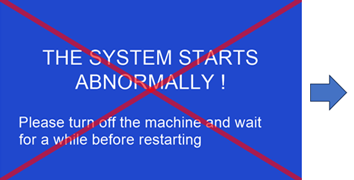
        - Annoying "**SYSTEM STARTS ABNORMALLY**" errors.
            
            <table border="1" style="border-collapse: collapse; width: 100.062%;"><colgroup><col style="width: 49.8447%;"></col><col style="width: 49.8447%;"></col></colgroup><tbody><tr><td>![image.png](https://openqidi.com/uploads/images/gallery/2025-02/scaled-1680-/P0kMcBEBhLiDmfWL-image.png)
            
            </td><td>NOTE: This is an animated gif in the original source:
            
            [![image.png](https://openqidi.com/uploads/images/gallery/2025-02/scaled-1680-/ZjDW8LjoMyPq9S2K-image.png)](https://openqidi.com/uploads/images/gallery/2025-02/ZjDW8LjoMyPq9S2K-image.png)
            
            </td></tr></tbody></table>
        - You want to have **nice looking thumbnails**
            
            <table border="1" style="border-collapse: collapse; width: 100.062%;"><colgroup><col style="width: 49.8447%;"></col><col style="width: 49.8447%;"></col></colgroup><tbody><tr><td>[![image.png](https://openqidi.com/uploads/images/gallery/2025-02/scaled-1680-/Ithnc081cHbAXVfP-image.png)](https://openqidi.com/uploads/images/gallery/2025-02/Ithnc081cHbAXVfP-image.png)
            
            </td><td>[![image.png](https://openqidi.com/uploads/images/gallery/2025-02/scaled-1680-/2jBw1Jx6K0JKb9Ip-image.png)](https://openqidi.com/uploads/images/gallery/2025-02/2jBw1Jx6K0JKb9Ip-image.png)
            
            </td></tr></tbody></table>

### 🛠️ Contribute to FreeDi

FreeDi is a project inspired and shaped by the community. Your ideas, feature requests, and suggestions play an essential role in its ongoing development. Help spread the word so that every QIDI user knows about this project and can make an informed decision for themselves.

### ⚠️ Disclaimer

Before you start, please understand that this is a hobby project and using my firmware is at your own risk.  
I have spent many hours testing and flashed the LCD more than 1,000 times to ensure it provides   
the best possible experience, but I can't test every possible scenario. If you encounter any issues,  
please report them here on GitHub.

Please do not contact Qidi support if you have any problems. By making these modifications,  
you may void your warranty in this regard.  
  
If you ever want or need to revert to the stock system after flashing my firmware, don't worry – it's possible.  
  
You can use a "recovery" image provided by Qidi and flash the official \*.tft firmware back to the LCD.

### 📢 Notice Regarding Guides, Contributions, and Sharing

kindly ask that you **do not copy or redistribute any parts of my guide and software** without explicit permission.  
In the past, sections of my work have been used without proper credit and claimed as their work.  
Incorrect parts have been added to other guides and resulted in additional effort on my part.  
This resulted in me being contacted for support related to these guides which had errors.  
I hope you do understand that I dont like to spend extra time to fix other faults :).  
  
**However, feel free to share the guide with others as long as proper credit is given!**  
The more users can benefit from it, the happier I get ;)  
  
I invite everyone to share and collaborate to make this the "go-to" place for X3-Series improvements. If you have suggestions or improvements, I warmly invite you to **submit your contributions directly to me**.  
I will gladly consider integrating them to improve the guide and firmwares for everyone.  
This not only improves the usability for everyone, but also helps to ensure accuracy and reduces unnecessary support issues.  
  
Thank you for respecting this request and for helping to foster a supportive and fair community.

## How do I get started?

Follow their [guide](https://github.com/Phil1988/FreeDi/wiki)!

<p class="callout warning">Not copy and pasting that any further due to the fact that it'd go out of date quite quickly and because the last thing I copy and pasted explicetly asks that we don't do that!</p>